Setting the 2-parameter view as the start view
You can display 1 or 2 parameters in the start view.
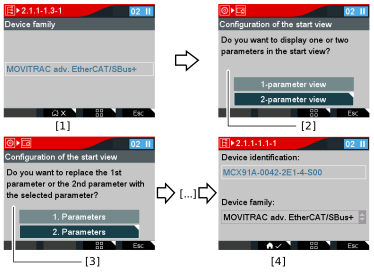

Proceed as follows:
- Select the parameter that you want to define as the start view.
- Press the second function key [1].
- The following question is displayed: "Do you want to display one or two parameters in the start view?"
- Select the 2-parameter view [2] and confirm with the <OK> key.
- The following question is displayed: "Do you want to replace the 1st parameter or the 2nd parameter with the selected parameter?"
- Select the desired option [3] and confirm with the <OK> key.
- You have defined the 1st parameter in the start view.
- Repeat steps 1 – 4 for the 2nd parameter and set it to the 2nd option.
- You have set both parameters as the start view.
- The symbol is displayed with a check mark [4].
Alternatively, you can create the two-parameter view via Defining the start view (keypad settings).
