Setting the engineering PC
To be able to access the inverters with the engineering software via the mailbox gateway, you must configure a static route.
Proceed as follows:
- You have administrator rights on the engineering PC.
- The TwinCAT program is in the "RUN" operating mode.
- Open the Windows prompt of the engineering PC and enter the following command:
route addIP address mailbox gatewayMASKSubnet mask IP address EtherCAT® master - In this example, the following addresses are assigned:
INFORMATION

If the command in "route –p add IP Address Mailbox-GatewayMASK subnet mask IP address EtherCAT® master" has been amended, then a permanent route will be generated. This requires an new start for the engineering PC.
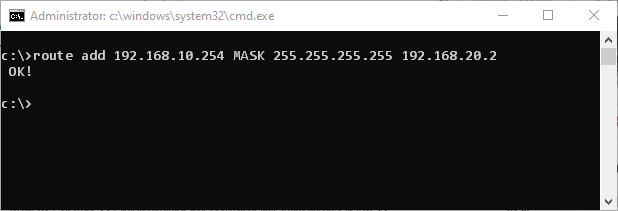

| Address |
|---|---|
Mailbox gateway | 192.168.10.254 |
Subnet mask | 255255255255 |
EtherCAT® master | 192.168.20.2 |
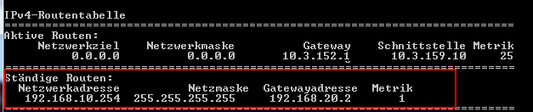
- Check the route with the
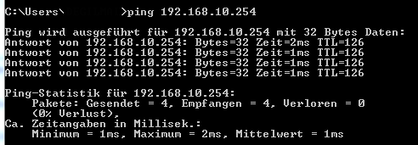
route printcommand. - Additionally test the settings with a PING query to the mailbox gateway.
- If the PING request is answered, the mailbox gateway can be used in the MOVISUITE® engineering software.
- Start MOVISUITE® and create a new project.
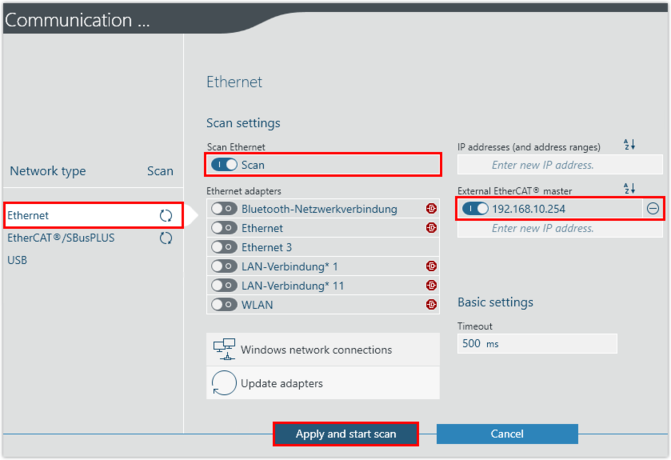
- Enter the IP address of the mailbox gateway in the communication settings. Increase the timeout time if necessary, depending on the hardware and network topology used.
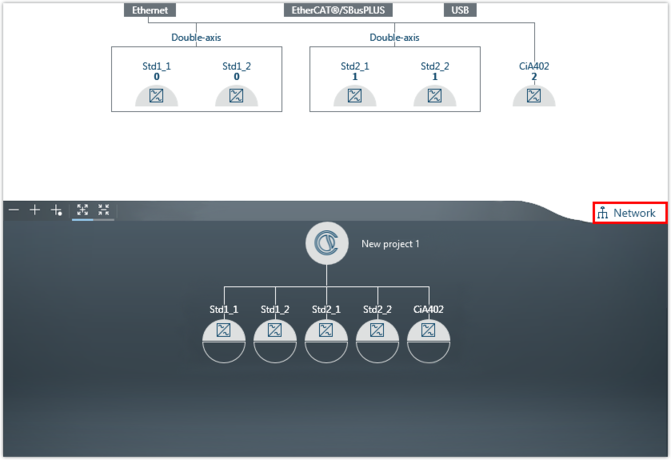
- All devices that are detected during the network scan are transferred to the MOVISUITE® project.
- The following example shows an axis system consisting of a standard inverter and an inverter with CiA402 device profile in the combined network and function view of MOVISUITE®.