Scanning the PROFINET IO controller network for devices
You can scan for connected PROFITNET devices using the "Scan for devices" function in the pop-up menu of the PROFINET controller.
- Make sure that all PROFINET IO devices are correctly connected (cabled) and switched on.
- Compile the project and make sure that there are no active errors.
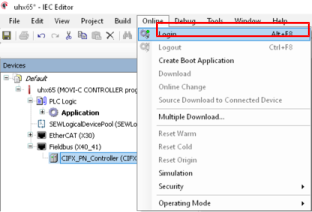
- Log in. To do so, select the menu command [Online] > [Log in] or press the <ALT> + <F8> keys.
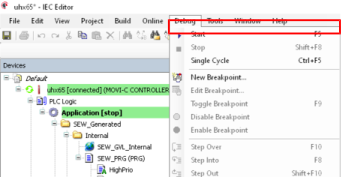
- Start the controller. To do so, select the menu command [Debug] > [Start] or press the <F5> key.
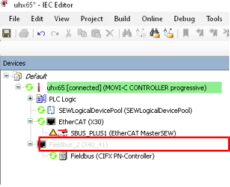
- The IEC project should now be active. If the PROFINET IO controller symbol is green, the network is ready for operation.
INFORMATION

If the PROFINET IO controller symbol shows a red triangle, the controller did not start up. There may possibly still be a missing PROFINET IO controller license on the MOVI-C® CONTROLLER UHX65A-M. Open the license manager in MOVISUITE® and check the licenses. After activating the licenses, restart the MOVI-C® CONTROLLER UHX65A-M with a 24 V reset.
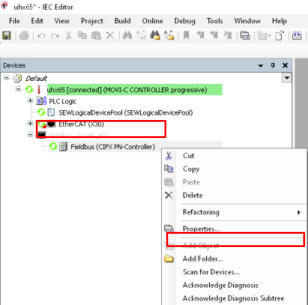
- Open the context menu of the PROFINET IO controller with a right click and select the option "Scan for devices...".
- A new dialog window will open that lists all connected PROFINET IO devices of the network. An unambiguous and PROFINET-compliant station name as well as an IP address must be assigned for the initial startup of a PROFINET IO device.
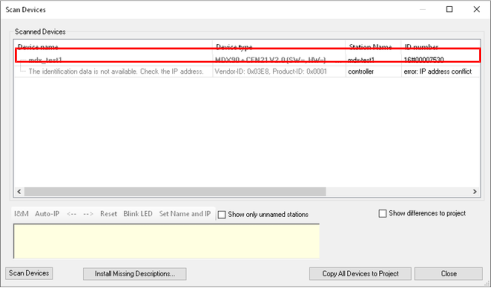
INFORMATION
Should the scan not output any results despite correct network settings and cabling, there may possibly still be a missing PROFINET IO controller license on the MOVI-C® CONTROLLER UHX65A-M. Open the license manager in MOVISUITE® and check the licenses. After activating the licenses, restart the MOVI-C® CONTROLLER UHX65A-M with a 24 V reset.
- If the PROFINET IO device does not contain any IP address (default setting) or if the IP address being retrieved by the device is invalid, the IP configuration can be assigned manually or automatically.
- Select the PROFINET IO device and manually enter the IP address, the subnet mask, and the gateway. Click the [Determine name + IP] button. When assigning manually, please note that the entered IP address must lie within the IP address range of the PROFINET IO controller. If the attempt to adjust the configuration is unsuccessful, the IP address and the name will be reset to the previous configuration.
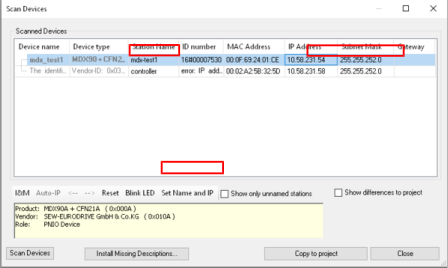
- If you click the [Auto IP] button, a valid IP address within the IP address range (network settings of the PROFINET IO controller) and the correct subnet mask will be set.
- After you have configured all devices accordingly, transfer the devices to the project structure. To do so, click the [Copy all devices to the project] button.
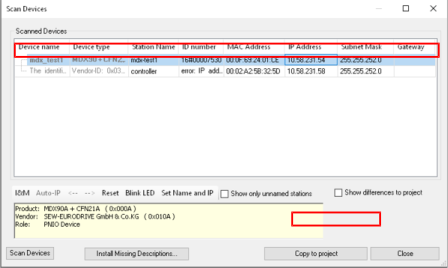
- The PROFINET IO devices are now available in the IEC project.
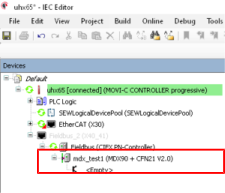
- Log out again. To do so, select the menu command [Online] > [Log out] or press the <ALT> + < F8> keys.
