With administrator rights (SMID licensing)
INFORMATION

Carry out a normal shutdown of the Windows operating system after setting up an autostart. Disconnecting the voltage supply during operation may cause the settings to be lost.
INFORMATION
The autostart of a Windows application with graphical user interface after system start is only effective or visible if a user is actively logged onto Windows. This also applies to running the Visualization and thus displaying it on a monitor connected to the MOVI-C® CONTROLLER. For instructions on how to configure an automatic user logon in Windows, see chapter Configuring automatic user logon.
An application that requires higher privileges in order for it to be run must be assigned its own task for the purposes of the autostart. Windows offers the "Task Scheduler" tool to create such tasks.
Proceed as follows to set up the autostart:
- Visualization has administrator rights. See chapter Assigning administrator rights.
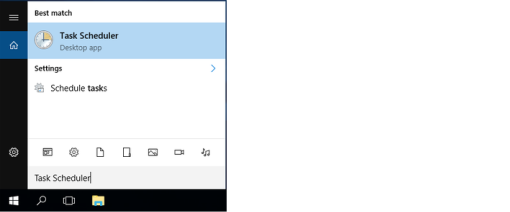
- Open the Start menu on the Windows part of the MOVI-C® CONTROLLER and enter "Task Scheduler".
- Open the "Task Scheduler" desktop app.
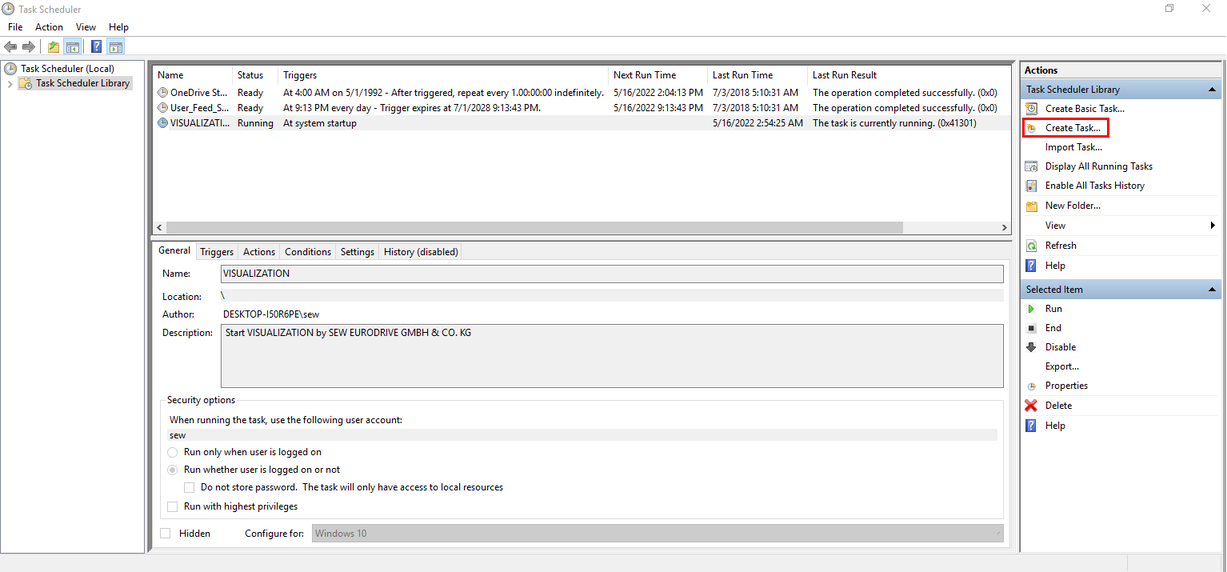
- To create a new task, click "Create Task..." on the right side of the "Task Scheduler" initial screen.
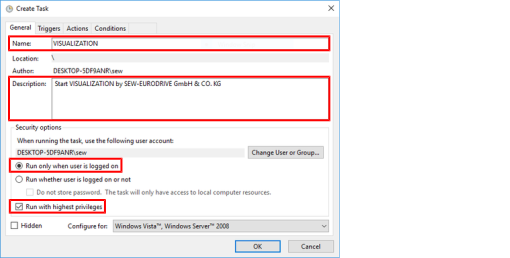
- On the "General" tab, enter a name and optionally a description for the task.
- In the "Security options" area, select the "Run only when user is logged on" option and activate the "Run with highest privileges" check box.
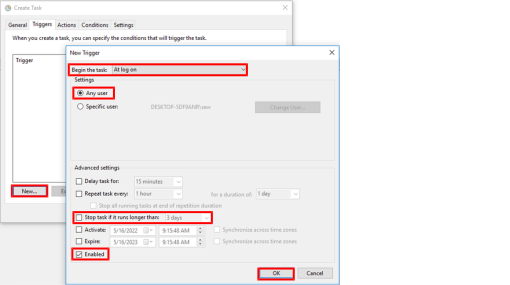
- Jump to the "Triggers" tab and click the [New...] button.
- The "New Trigger" dialog box opens.
- In the "Begin the task" box, select "At log on" and then select the "Any user" option in the "Settings" area.
- In the "Advanced settings" area, deactivate the "Stop task if it runs longer than" check box, so that the visualization will run permanently.
- Activate the "Enabled" check box in the "Advanced settings" area.
- Click [OK] to confirm your entry.
- The configured trigger is added and activated for the task.
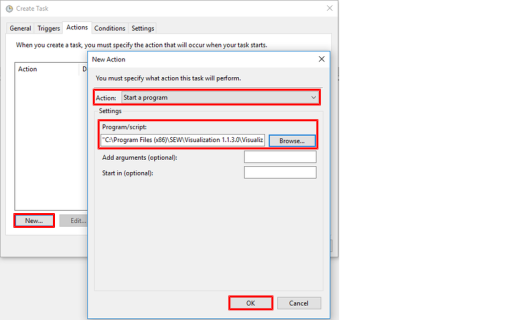
- Jump to the "Actions" tab and click the [New...] button.
- The "New Action" dialog box opens.
- Select "Start a program" in the "Action" box.
- In the "Settings" area, enter the storage location of the visualization application in the "Program/script" field (in the example:
C:\Program Files (x86)\SEW\MOVIKIT Visualization 1.3.9.0\MOVIKIT Visualization.exe). - Click [OK] to confirm your entry.
- The configured action is added and activated for the task.
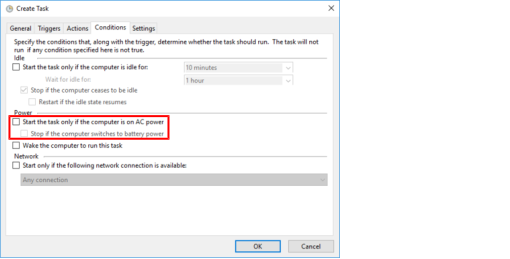
- Jump to the "Conditions" tab.
- In the "Power" area, deactivate the "Start the task only if the computer is on AC power" and "Stop if the computer switches to battery power" check boxes.
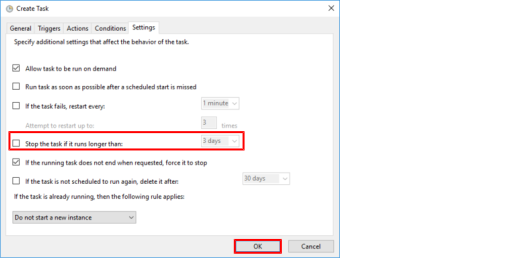
- Jump to the "Settings" tab.
- To have the visualization run permanently, deactivate the "Stop the task if it runs longer than" check box.
- Confirm your entries with [OK].
- Since the visualization must be run with administrator rights, the user password is requested.
- Store the user password (here: sewsewsew).

- The autostart for the visualization is set up. The application is started automatically each time Windows is started using its own task on the MOVI-C® CONTROLLER.
