Configuring automatic user logon
INFORMATION

For more information about this topic, refer to the Window help.
INFORMATION
When setting up automatic user login using the procedure described above, the password used can be viewed via the Windows registration. If you want to avoid this for security reasons, use the Microsoft SysInternals tool or another tool recommended by your IT to set up automatic user login.
The autostart of a Windows application with graphical user interface after system start is only effective or visible if a user is actively logged onto Windows. An automatic user logon must therefore be configured in Windows to run the visualization and thus display it on a monitor connected to the MOVI-C® CONTROLLER.
Proceed as follows:
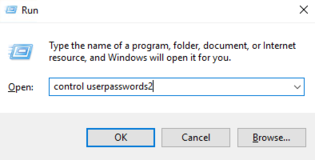
- Press the [Windows] + [R] key combination.
- The "Run" dialog box is displayed.
- In the "Run" dialog box, enter the
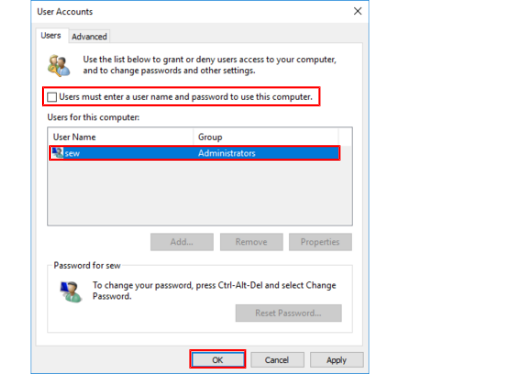
control userpasswords2command and confirm with [OK]. - The "User Accounts" dialog box opens.
- In the "Users for this computer" area, select your user (here: sew) and deactivate the "Users must enter a user name and password to use this computer" check box.
- Click [OK] to confirm your entry.
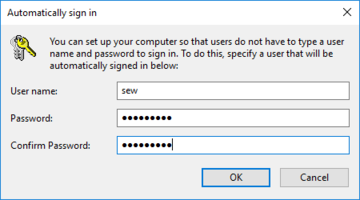
- A dialog box for requesting the user data is displayed.
- Enter your user data (here: user: sew, password: sewsewsew) and confirm your entry with [OK].

- The automatic user logon in Windows is configured and will be active as of the next system restart.
