Exporting the symbol configuration
Variable information can be exchanged between the IEC project and the visualization project by exporting the symbol file.
Notes:
- The generated symbol file contains the variable information at the time of export. Subsequent changes to the IEC project are not automatically added to the symbol file. The symbol file must be recreated, exported and imported into the visualization project in an additional step after the changes to the IEC project have been completed.
- The exported symbol file contains variable structures (Structs) and the variables used. Variables not used in the IEC program code are not taken into account during the export (default setting), even if they are contained in a structure that is used.
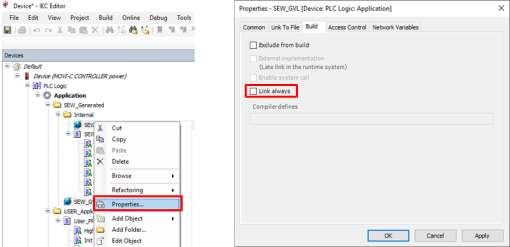
- If all variables (i.e. including those that are not used) are to be included in the exported symbol file, this must be set in the properties of the corresponding variable list (GVL). To do this, open the properties of a variable list (GVL) and activate the "Link always" check box in the "Build" tab.

- Project archives are often used to transfer an IEC project to another engineering PC; these archives can be created from an IEC project with the IEC Editor. When archiving a project, you should make sure that the symbol file is included in the project archive (activate the "Symbol configuration" check box when creating the repository). If the symbol file is missing, project compilation is canceled and a compiler error is triggered. The memory path of the symbol file may have to be adjusted in the communication settings of the data source.
Exporting symbol file:
Proceed as follows to export the symbol file in the IEC project:
- MOVISUITE® and the IEC project are open.
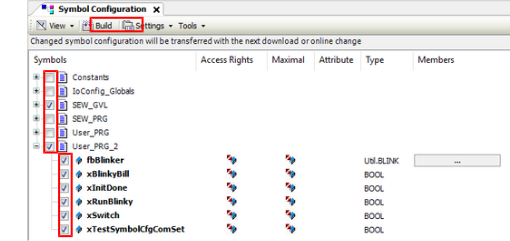
- Open the symbol configuration by double-clicking the corresponding object in the device tree of the IEC project.
- Use the check boxes to select the desired variables for the export.
- Click [Create] in the toolbar of the symbol configuration.
- Open the [Build] menu and select [Build]. You can also start the process using the key shortcut <F11>.
- Save the IEC project in the IEC Editor and the MOVISUITE® project so that the symbol configuration will be updated or recreated.
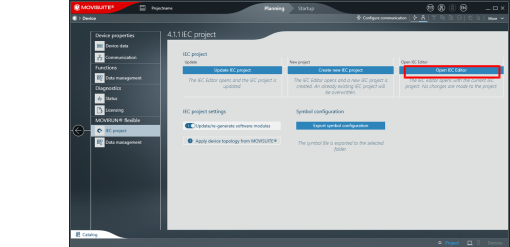
- Jump to MOVISUITE® and click the software module area of the MOVI-C® CONTROLLER.
- The configuration of the MOVI-C® CONTROLLER opens.
- Open the "IEC project" menu from the "MOVIRUN® flexible" menu area.
- Click the [Export symbol configuration] button under "Symbol configuration".
- The symbol file is exported to the selected folder.
- By displaying the symbol file, e.g. with the text editor, you can check whether the selected variables are stored.