Instance details view
The instance details view shows a detailed overview of the state of all monitored machines and components.
Depending on how many instances are assigned to your user account, you can access the instance details view in different ways.
If only one instance is assigned to your user account, open the instance details view in one of the following ways:
- Klick the SEW-EURODRIVE Logo in the upper left corner of the screen
- Klick the Home menu item
If several instances are assigned to your user account, open the instance details view in one of the following ways:
- Klick on an instance in Instance management
- Klick on the Dashboard - [instance name] menu item. The menu item is only displayed once you are at a lower level of the instance, for example in an Asset details view.
In the instance details view, you can record relevant information such as current sensor values, warning messages, or error messages at a glance. The visual representation of the operating states facilitates their analysis and enables you to react quickly to critical situations.
You can use the Asset Group function to organize the machines and components in a structured manner. You can summarize assets based on location, usage, or other criteria, which simplifies condition monitoring, especially in larger systems. Interactive filter options allow you to search for specific assets and retrieve details. You can create and modify asset groups using the "Edit instance" function (Editing an instance).
To ensure efficient communication and management, additional information such as the address, customer number, and contact person is directly available.
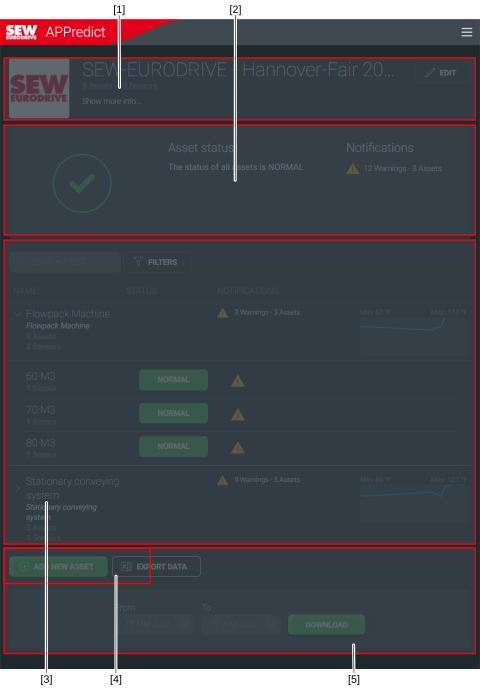

[1] | General information about the instance |
[2] | Status overview of all sensors, including warnings and alarms |
[3] | Structured management of monitored assets, with grouping options |
[4] | Button for adding a new asset |
[5] | CSV export for a selected period |