Asset details view
The details view of an asset displays comprehensive information about the state of the asset.
Open the asset details view by clicking one of the assets in the Instance details view. If the asset is assigned to a group, you must first expand this group.
The asset details view shows all relevant data in a structured manner so that you can quickly take in critical information and perform a targeted and detailed analysis of the state of an asset.
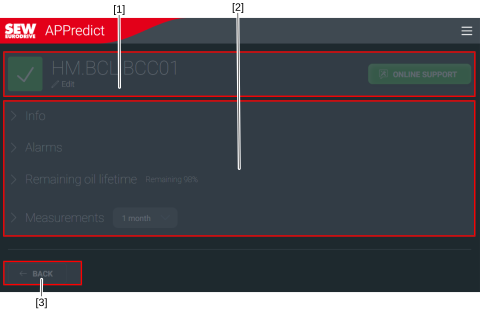

[1] | Asset name, [Edit] button, and jump to the SEW-EURODRIVE online support if it is a SEW-EURODRIVE component. |
[2] | Menus |
[3] | Return to the instance details view. |
Info
When you expand the Info menu, the following general information and master data is displayed:
- Manufacturer
- Serial number
- Mounting position in the system
- Orientation of the terminal box in the system
- Notes
- Photo or video of the nameplate and the asset
Alarms
When you expand the Alarms menu, the following alarm management information is displayed:
- Summary of current alarms with visually highlighted warning messages
- Button for displaying the alarm history
Remaining oil lifetime
If you expand the Remaining oil lifetime menu, the following information on oil management is displayed:
- Last oil change and expiration date, if this information maintained. If the information on the most recent oil change is not maintained, the software for components from SEW-EURODRIVE uses the year of manufacture from the serial number as the default value.
- Forecast of the remaining service life in days and percent, based on wear indicators
Measurements
If you expand the Measurements menu, the following interface with visual representations of the sensor data is displayed:
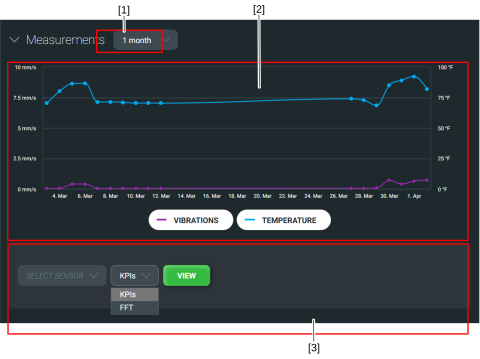
[1] | Selected display period |
[2] | Representation of the important KPIs for vibration and temperature in the selected time period |
[3] | Sensor selection for displaying additional KPIs or FFT |
You can view additional information and data for each sensor installed on the asset. If you have selected FFT, additionally select the sensor and data type as well as an exact date. To confirm your selection, click the [VIEW] button. The following information is displayed:
- Serial number
- Installation date
- Measurement mode: Standard, Dynamic, High-Dynamic
- Learning mode: When the sensor is leaning the current system behavior. The data from the learning mode serves as reference data for detecting deviations later on.
- Deactivated: If the sensor has not sent any data for more than 24 hours.
The following diagrams are displayed. The diagrams allow for an extended vibration analysis in accordance with ISO 20816:
- ISO
- Demodulation
- Kurtosis (low)
- Kurtosis (high)
- Root-Mean-Square (low)
- Root-Mean-Square (high)
- Fourier transformation for frequency analysis
To display an information text for each specific diagram, click [Info].
Below the diagrams there is a CSV export function. To save the displayed data to your device, click the [DOWNLOAD] button. This way, you can use the data for further analyses outside the system.
