Copying a firmware image to the OMH memory card
- The steps described in chapter Exporting a firmware image have been performed. The firmware image of the MOVI-C® CONTROLLER is located on your computer as a ZIP archive.
- Remove the OMH memory card from the MOVI‑C® CONTROLLER.
- To read the data stored on the OMH memory card, insert the card in a card reader connected to your computer. You can also use another suitable interface of your computer.
- On your computer, use a file explorer to open the contents of the OMH memory card.
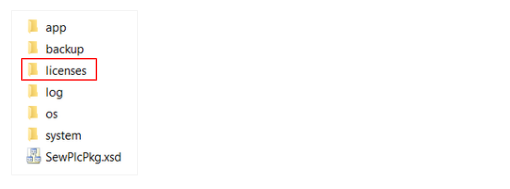
- To save your license files, copy the "licenses" directory locally to your computer.
- Delete all files on the OMH memory card.
- Unzip the ZIP archive of the required firmware image onto the OMH memory card. For more information on the export, refer to chapter Exporting a firmware image.
- From the "licenses" directory copied locally to your computer, copy the SEW license file to the "licenses" directory on the OMH memory card.
- The firmware has been updated. Now you can create a new MOVISUITE® project.