SMID licensing
During the installation of the visualization, the license file generated by SEW production with the activated purchased licenses is recognized and automatically taken into consideration for the licensing.
Activating a license
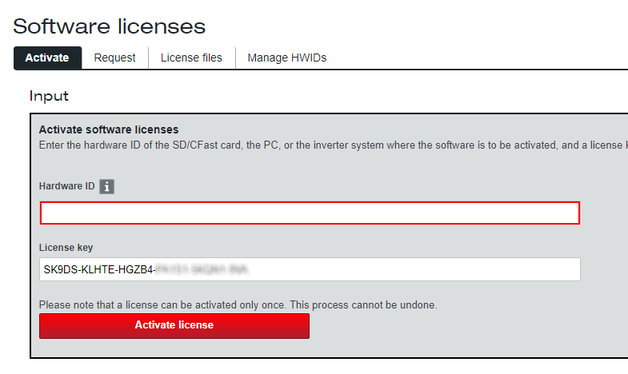
- Determine the SMID of your OMW CFast memory card (printed on card)
- In this case: 22735648-DACB6C1B-FF
- Open the "Software licenses" page on the engineering PC in SEW‑EURODRIVE Online Support (https://www.sew‑eurodrive.de/os/licensing).
- Enter the determined SMID in the "Activate" tab in the "Hardware ID" box and the licensing key from the order confirmation and click [Activate license].
- The activation of the license on the hardware ID is displayed as the result.
- Click [Create license file].
- The "License files" tab is displayed.


Create license request file and copy to engineering PC
- Open the IEC Editor and establish a communication link between the engineering PC and the visualization device.
- Open the Properties tab of the visualization device by double-clicking the visualization device in the device tree and opening the "PLC Shell" tab which it contains.
- Run one of the following commands to create a license request file for your SMID. INFORMATION: Replace "SMID" with the SMID you have noted. (You can optionally specify the file name for the license file during creation. If the required file name is to include spaces, these must be enclosed in quotes.)
sewlicmgr create LicenseFile SMIDorsewlicmgr create LicenseFile SMID Meine_Request_Datei.xml- The license request file has been created.
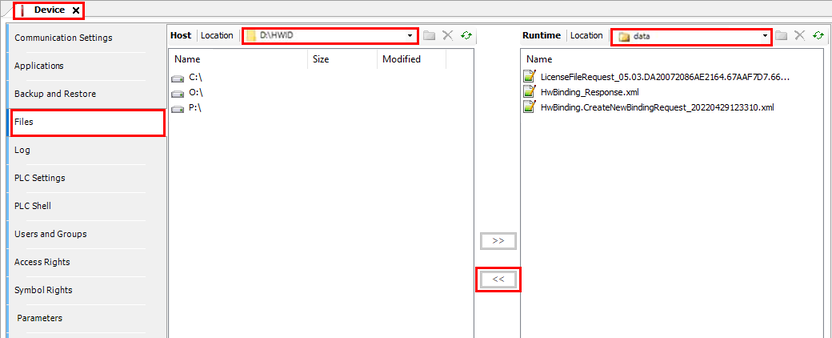
- Switch to the "Files" tab.
- Copy the created license request file from the "data" directory on the visualization device to your engineering PC. (This step is not necessary if the visualization device and the engineering PC are the same device)

Create license file and load onto controller
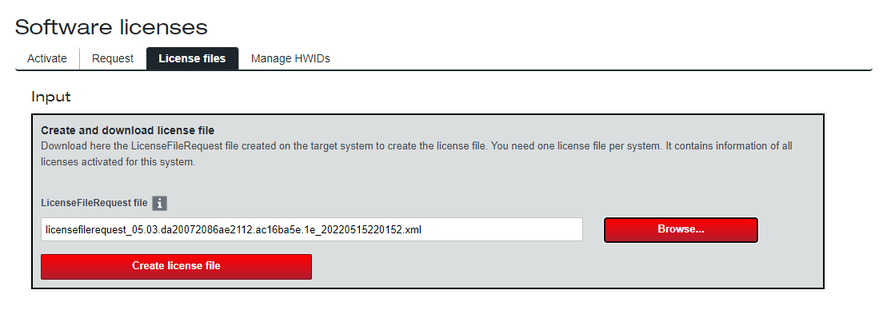
- Switch to the "Software licenses" page again in SEW‑EURODRIVE Online Support (https://www.sew‑eurodrive.de/os/licensing) on the engineering PC.
- Upload the created license request file in the "License files" tab via the "LicenceFileRequest file" field.
- Click [Create license file].
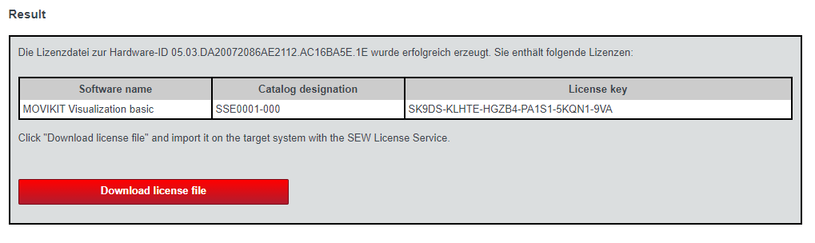
- The license file and an overview of the licenses which it contains is displayed as the result.
- Download the license file onto your engineering PC using the [Download license file] button.
- Switch to the IEC Editor and copy the downloaded license file to the "data" directory on the visualization device via the "Files" tab.
Install the license file
- Switch to the "PLC Shell" tab and run the following command to install the license file. INFORMATION: Replace
*.sewlicensefilewith the file name of the downloaded license file. sewlicmgr install LicenseFile *.sewlicensefile- The license file has been installed.

Check licensing
- Run the following command to check the available HW bindings:
sewlicmgr list HwBindings- The created HW binding is listed, and the existence of a valid license file is indicated via the license file status ("LicenceFileState" column).
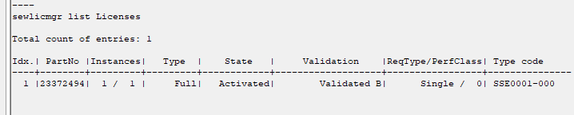
- To check whether the activated license is present, run the following command:
sewlicmgr list Licenses- The activated license is listed.
- Switch to the "Log" tab and check the status of the licensing (filter in accordance with "SewVisuLicense"). See also Checking the license.
- The activated license is listed.

Completing licensing
- If an application has already been loaded, restart the visualization or download the Visu application again to exit trial mode.
