Via Remote Desktop access
Proceed as follows to install the Visualization on the Windows part of the MOVI-C® CONTROLLER using Remote Desktop access.
- The Remote Desktop access to the MOVI-C® CONTROLLER is active and the desktop of the Windows operating system is displayed on the MOVI-C® CONTROLLER. For further information, refer to chapter Setting up a network connection.
- Copy the downloaded installation file of the Visualization to the MOVI-C® CONTROLLER. Select a target directory without user-specific access restrictions (e.g.
C:\Users\sew\Downloads\). - Start the installation process by double-clicking the copied file. If necessary, confirm the requested administrator authorizations with [Yes].
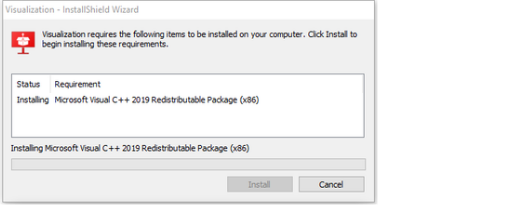
- A check is performed to verify if the required software has been installed. Missing software is automatically installed and a Windows restart can be requested if necessary. The installation of the Visualization continues automatically if a system restart has been requested.
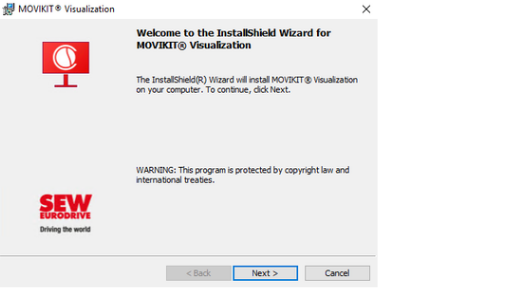
- The initial screen of the Visualization installation wizard is displayed.
- The installation wizard will guide you through the installation process. A full installation of the software is recommended. The installation will start as soon as the license agreements have been accepted.
- If the OMW CFast memory card for the MOVI-C® CONTROLLER was ordered including a Visualization license, it is automatically recognized and used during installation. For further information, refer to chapter Licensing.


- The installation wizard can be closed when the installation is complete. The Visualization was successfully installed on the target system and is ready for use.
