Setting a fixed IP address on the MOVI-C® CONTROLLER
A fixed IP address must be assigned to the Windows part of the MOVI-C® CONTROLLER so that it can be addressed by other network stations.
Since the IP address 192.168.10.37 in the IP address range from 192.168.10.6 to 192.168.10.254 has already been assigned to the engineering PC for the startup carried out in this document, this address cannot be assigned to any other network station within the subnet. The network interface of the Windows part of the MOVI-C® CONTROLLER is assigned the IP address 192.168.10.5.
If the network interface X90 of the Windows part of the MOVI-C® CONTROLLER does not already have this IP address assigned to it in the factory settings, the IP address can be set as follows:
- Open the "Control Panel" application from the Windows Start menu.
- In the "Control Panel", open the "Network and Sharing Center" settings menu.
- In the "Network and Sharing Center", use the link on the left to open the "Change adapter settings" option.
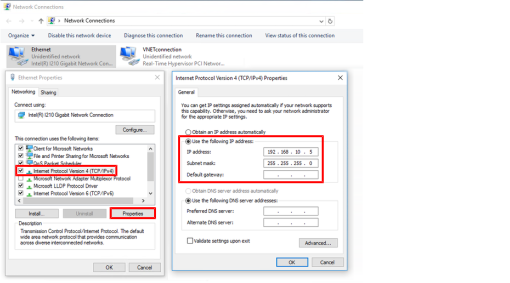
- In the adapter settings, right-click the "Ethernet" network adapter to open its shortcut menu and click the [Properties] item. INFORMATION: Make sure not to open the settings of the VNET network adapter by mistake. You can tell this by the fact that it already has a fixed IP address
129.168.2.1assigned to it in the factory settings. - Open the "Properties" of the "Internet Protocol Version 4 (TCP/IPv4)" element in the "Networking" tab of the "Ethernet" properties.
- In the properties of "Internet Protocol Version 4 (TCP/IPv4)", activate the "Use the following IP address" option.
- Enter the desired IP address in the "IP address" field (here:
192.168.10.5; see screenshot). The "Subnet mask" field is automatically filled with the corresponding subnet mask after the IP address has been entered. If the field is not filled in automatically, enter the subnet mask255.255.255.0manually.