Adding devices to MOVISUITE®
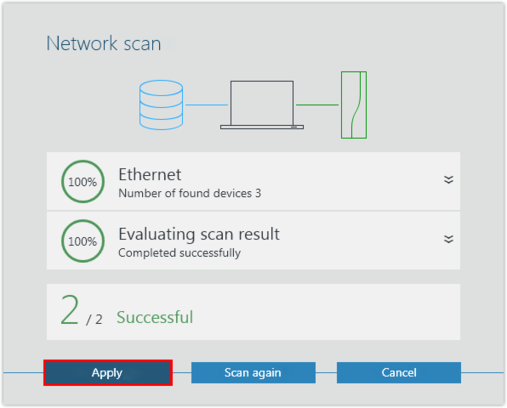
The devices are detected during the network scan.
Proceed as follows:
- You have started a network scan.
- Add the scanned devices to MOVISUITE®.
- Load the device data into the MOVISUITE® project. Confirm the message stating that the device data has been successfully transferred.
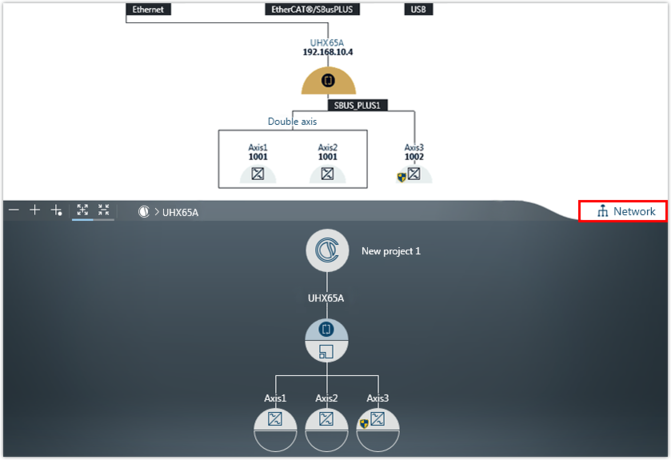
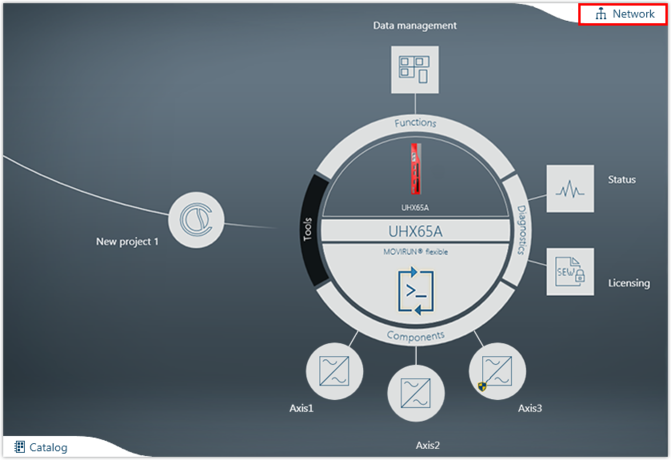
- The devices are displayed in one of the MOVISUITE® views. The display depends on the view you used when closing MOVISUITE® for the last time:
- The combined network and function view shows all connected devices detected during the network scan.
- The function view has 2 views. The tree view provides an overview of the entire project. The circle view shows the current node as a large circle in the center of the workspace.
- To toggle between the MOVISUITE® views, click the "Network" tab.
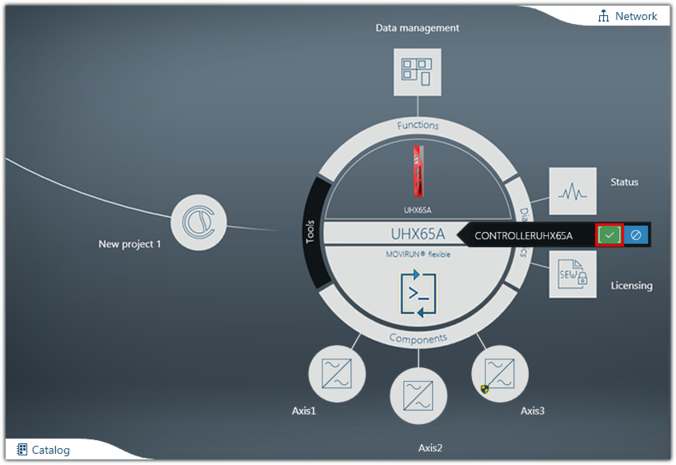
- Enter a name for the controller. The controller will then be shown in the MOVISUITE® project under this name. This designation is automatically also used as a PROFINET device name. Note the special features of the PROFINET device name (see PROFINET device name).
- Save the MOVISUITE® project.