Activating a software license in the MOVIRUN® open editor
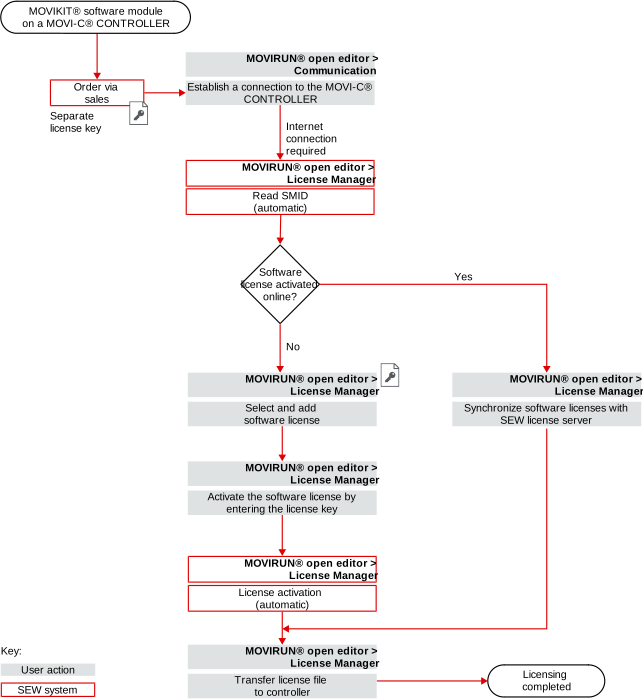
The following figure illustrates the licensing procedure:

Proceed as follows to activate the software license:
- The engineering PC has an active Internet connection.
- You have purchased one or more software licenses and the associated license keys have been sent to you.
- Open the MOVIRUN® open editor.
- Establish a connection to the MOVI-C® CONTROLLER.
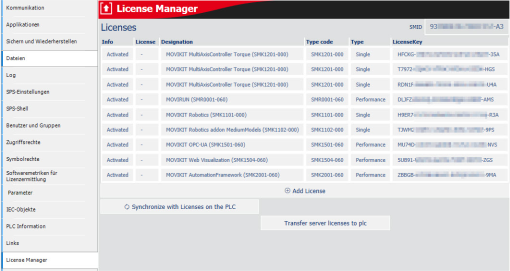
- In the device view, switch to "License Manager".
- The License Manager reads the software licenses active on the device.
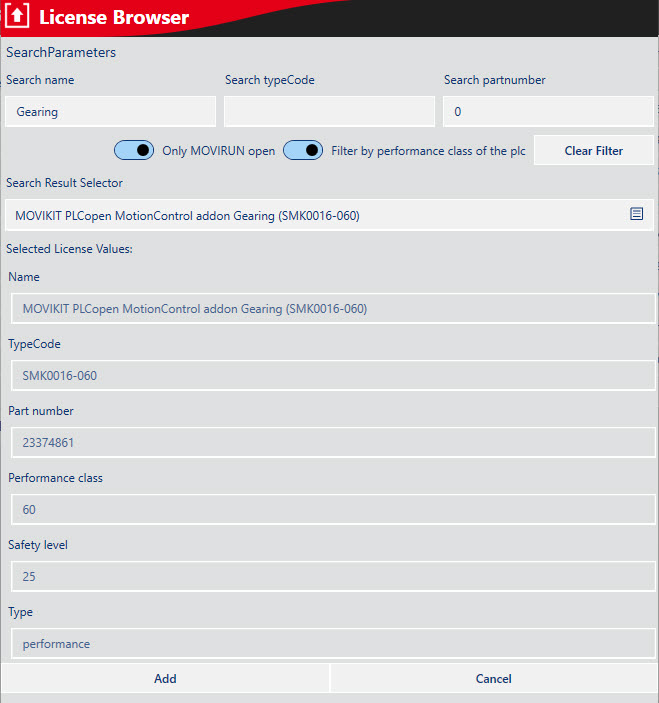
- Open the "License Browser" via the [Add License] button.
- Select the required software license and click the [Add] button.
- The new software license is added to the list.
- Activate the newly added software license via the [Activate license with LicenseKey] button.
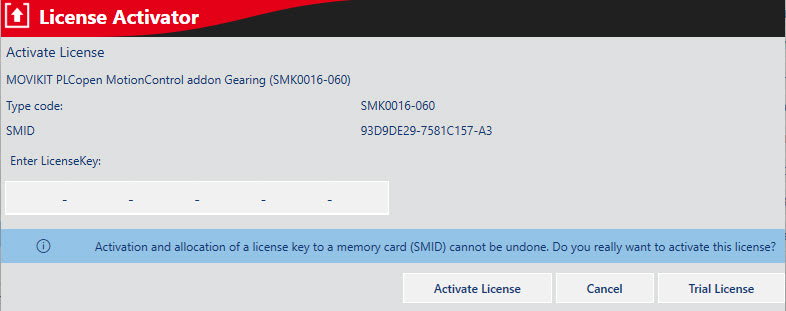
- The "License Activator" dialog window opens.
- Enter your purchased license key for the MOVIKIT® software module.
- Confirm the license activation by clicking the [Activate License] button.
- The software license is activated and permanently connected to the device.
- Click the [Transfer Server Licenses to PLC] button.
- The updated software licenses are transferred to the device.
- Some MOVIKIT® software modules require a restart of the MOVI-C® CONTROLLER after the updated license file have been transferred. Restart the MOVI-C® CONTROLLER.