Creating a hardware binding file and copying it to the visualization device
- Open the "Software licenses" website in the SEW‑EURODRIVE Online Support (https://www.sew-eurodrive.de/os/licensing).
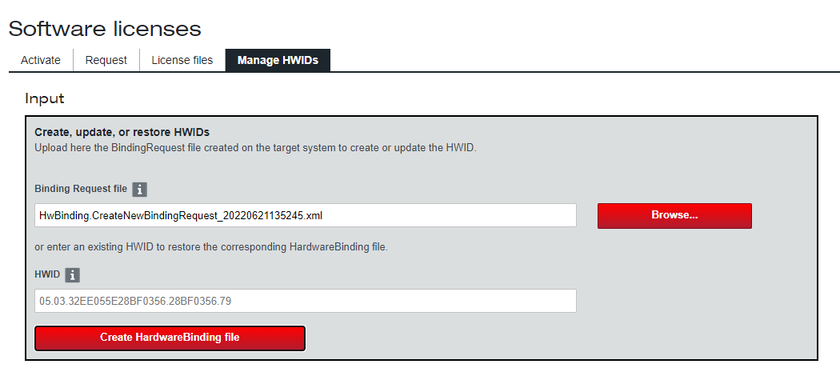
- Switch to the "Manage HWIDs" tab and upload the created hardware binding request file via the "Binding Request file" field.
- Click the [Create HardwareBinding file] button.
- Copy the HWID to the clipboard or a text editor.
- Download the hardware binding file to your engineering PC via the corresponding button. Copy the license key to the clipboard, make a note of it or send it by clicking the [Forward] button.
- Switch to the IEC Editor and, via the "Files" tab, copy the downloaded hardware binding file to the "data" directory on the visualization device.