Adding scope containers
The software enables access to scope recordings from devices via scope containers. To this effect, the software acts as a so-called scope client to control the scope recorder of the device (prerequisite: scope recorder version 2.1 or higher) (start the scope application, transmit data from the device) and check whether new data is available. The scope template used for the scope recording can be configured directly in the software (sample rate, trigger settings, recording channels) or imported from the device or a scope template file.
Since only one scope client can access the scope recorder of a device at a time, it is not possible to execute several scope recordings on one device at the same time. A mechanism for detecting and preventing competing access is implemented for MOVI-C® devices. This is not technologically possible for Generation B devices. However, it is possible to use a data container to control several devices.
For further information, refer to chapter Scope recordings.
To add a scope container, proceed as follows:
- At least one device group and one endpoint have been created.
- Open the "Data container" tab.
- Click [+ Add].
- The "Data container configuration" dialog window opens.
- The data container can be configured via the following setting fields:
Setting field | Description |
|---|---|
Name | Enter a name for the data container. The name is used in the tool configuration process and in the file structure when storing the JSON files. |
Identifier (ID) | Unique identifier of the data container that is generated automatically by the software and used internally for further processing. This identifier forms part of the name of the target directory at the associated endpoint. |
Data container description | Add optional description text. The description text is displayed on the "Data containers" tab. |
Data collection | |
Data container type | Select the data container type. For a scope container, select the value "Scope". The relevant fields for the scope container are then displayed in the dialog window. |
Scope platform type INFORMATION: Only available with "Generation B". | Select the scope recorder for the scope recording. The settings for the recording channels and the trigger are adjusted accordingly. |
Enable data container: The data container is collecting data. | Activate the recording of data by the data container immediately after saving the data container configuration. |
Update strategy | Specify the update strategy of the data container:
|
Update interval | Specify the update interval for data containers using the "Cyclic" update strategy. The update interval describes the time between two successive cycles. Each cycle consists of reading and transferring data and takes about 100 ms. For example, an update interval of 5 ms results in a cyclical output interval of approx. 105 ms. The maximum value for the update interval is 31 days. INFORMATION: If the load is high, for example due to a large number of configured devices and parameters or recording channels, it is possible that the configured low update interval is not adhered to because the previous cycle has not yet been completed. |
Device groups | |
Assigned device groups | Select the device groups for data acquisition. All groups created under the "Groups" tab are available here. |
[+] button | Create a new group and assign it to this data container. |
Transmission | |
Transmit the data packages to endpoints. | Activate or deactivate data transmission from this data container to the selected endpoints. |
Endpoints for transmitting data packages | Select one or more of the configured endpoints as the storage location for the recorded data. All entries created in the "Endpoints" menu are available here. |
Templates | |
Use container template | Activate inheriting the entire data model from container templates. After activation, the "Included container templates" edit box for selecting the container templates is displayed. The loaded recording channels are automatically synchronized with changes in the template and cannot be edited as long as inheriting is activated. |
Included container templates | Select one or more container templates to inherit the entire data model configured in them. All templates created in the "Templates" menu and templates from installed libraries are available here. INFORMATION: To reset the configuration of the data container to the configuration of the template specified here, click the "Reload template" entry at the top right of the |
Scope configuration | |
[Import] button INFORMATION: Only visible if "Inherit from container template" is deactivated. | Import a complete scope configuration from a MOVISUITE® MES or an XML file or from a switched-on device. For further information, refer to chapter Scope configuration. |
Sample rate | Specify the time interval between successive data samples. |
Post-trigger recording | Specify the percentage of the available recording buffer that should be filled with pre-recorded samples when the scope is triggered. INFORMATION: If the option "If a scope recording does not contain a sufficient number of data points, discard the data packages from the Generation B and MOVI-C® scope containers." is activated and a trigger has been configured for which data acquisition is directly active, the data of the 1st trigger event is discarded. Setting the value 100% also results in data loss. |
Application index INFORMATION: Available in MOVI-C® devices only. | Set the operating mode of the scope recorder.
|
Memory optimization INFORMATION: Available in MOVI-C® devices only. | Activate or deactivate optimization of memory usage. |
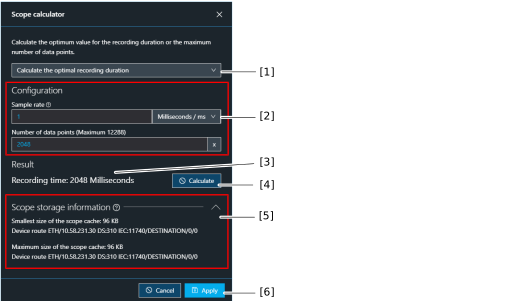
Limit of the number of data points INFORMATION: Available in MOVI-C® devices only. | Specify whether the number of data points should be limited. If you select "No limit", the scope cache is written completely. If you select "Strict limit", the "Maximum number of measuring points" field and the [Calculator] tool are displayed and the scope cache is only partially written according to the specified number. |
Maximum number of measuring points INFORMATION: Only visible if the "Strict limit" option is selected for "Limit data points". | Specify the maximum number of measuring points. A "calculator" is available for calculating the optimum value for the recording time or the maximum number of data points. |
[Calculator] button INFORMATION: Only visible if the "Strict limit" option is selected for "Limit data points". | Calculate the optimum value for the recording time or the maximum number of data points. For further information, refer to chapter Scope calculator. |
Recording time (estimate) | Generated estimate of the minimum recording time in milliseconds in accordance with the configuration above. |
Recording channels (INFORMATION: To save on data, avoid assigning recording channels to more than one container.) | |
[+ Add one] button INFORMATION: Available in MOVI-C® devices only. For "Generation B" devices, recording channels are added via the displayed drop-down lists and via the [+] button in the "Channel name" column for "MOVIAXIS®-based scopes". | Open the "Channel" dialog window to configure and add a scope channel. In the "Channel" dialog window, set the scope channel by specifying the index, subindex, name, and channel offset, or by selecting an entry from the "Available channels" list. By activating the "Only supported" check box, only parameters that can be used as a channel for a scope recording are displayed in the "Available channels" list. The added channels can then be re-sorted in the list of recording channels using the corresponding buttons. |
Function in the [Import scope channels from JSON file] submenu | Add scope channels by importing a JSON file or a CSV file exported from Excel, for example. |
Function in the [Export scope channels to JSON file] submenu | Export the currently created scope channels as a JSON file. |
Function in the [Import channels from container template] submenu | Import scope channels for data acquisition from a container template. Changes in the container template are automatically applied to the data container. |
Trigger settings (for MOVI-C® devices) | |
Trigger delay mode | Set the mode for the delay of a configured trigger. |
Trigger delay time INFORMATION: Only available when deceleration is activated. | Set the delay time for the configured trigger in microseconds. |
Enable triggers #1–#3 | Enable channel triggers and use the selection boxes to specify the channel, trigger type, and threshold values. |
Trigger conjunction | Connect multiple scope triggers to one another by using Boolean operators. |
Trigger settings | |
Terminal | Select the terminal to be used as the trigger signal. |
Condition | Select a rising or falling edge of the signal as the trigger condition. |
Enable channel trigger | Enable a channel trigger and use the choice boxes to specify the parameter name, trigger type, and threshold values. |
Enable error trigger | Enable an error trigger and use the choice boxes to specify the error code and the sub error code. |
Trigger settings | |
Enable analog trigger | Enable an analog trigger and enter the parameter name, trigger type, and threshold values via the choice boxes and, when the digital trigger is activated, specify whether analog and digital triggers are to be combined. |
Enable digital trigger | Enable a digital trigger and use the choice boxes to specify the parameter name, trigger type, and threshold values. |
Enable error trigger | Enable an error trigger. A scope recording will be started as soon as an error occurs. |
Metadata | |
Extended information on the data container. This metadata is transferred within the metadata section of the data event. The scope hash maps the entire configuration of the data container or the container template in a string. After changing the configuration, the scope hash must be updated by clicking [Calculate]. | |
 menu.
menu.