Registration via Bluetooth® interface
- You wrote down the password on the back of the module before assembly.
- You have mounted the module to the required inverter.
- You have switched on the inverter.
- You have activated the Bluetooth® interface of your mobile device or your computer.
- Open the IoT app on the mobile device or open the web app and log in.
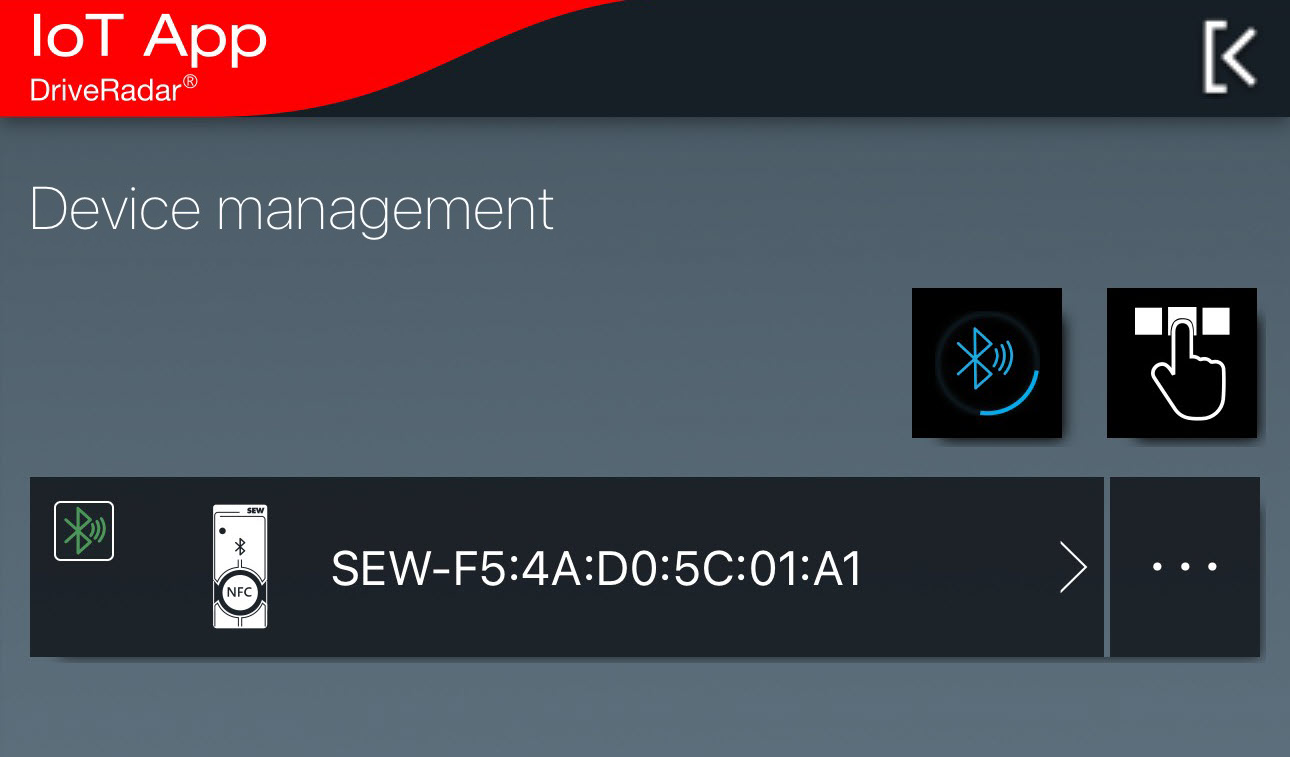
- Select [Add product] in device management to open the menu for adding devices.
- Select the Bluetooth® icon:

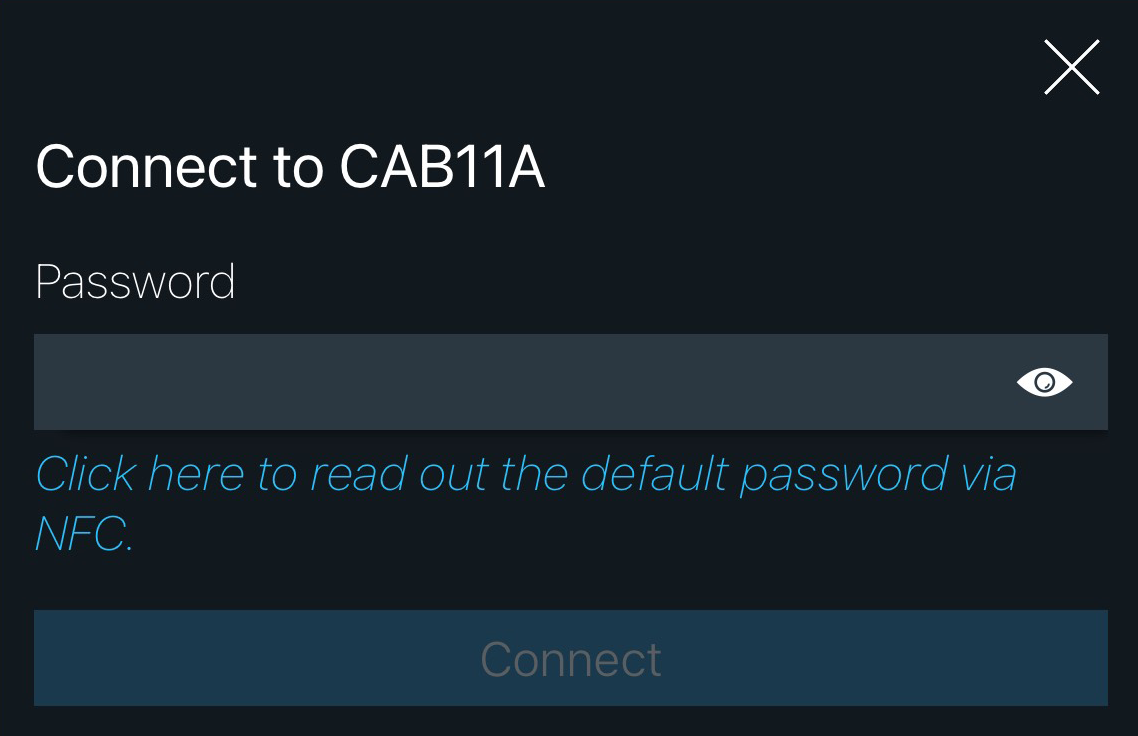
- Select the required module.
- Enter the password from the nameplate of the module and confirm your entry via [Connect].
- The module is logged in to the IoT app.
- The IoT app can communicate with the inverter.
- In device management, the symbol of the inverter is displayed with the module.
- Connections with modules that have already been logged in are established automatically as soon as you select the inverter with the module in device management.
INFORMATION: If you use the web app, IoT App Connect must also be open to establish connections that have already been set up.