Creating a pick-and-place program
When creating a new program , the [Create pick and place program] option is available. This option allows you to create a pick-and-place program using a dialog window in which the program can be parameterized.
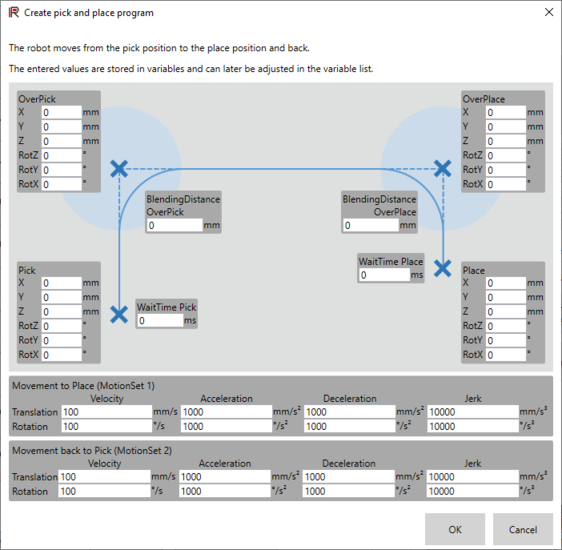

After confirming the dialog window with [OK], the pick-and-place program is generated automatically and transferred to the currently displayed program slot of the MOVI-C® CONTROLLER. In this process, robot variables are named accordingly, assigned the specified values and transferred to the MOVI-C® CONTROLLER. Working with robot variables allows you to reuse these variables elsewhere. In addition, the robot variables can be accessed from outside and in this way influence the program (e.g. from the IEC user program or via the fieldbus interface from a higher-level controller). The next free robot variables are automatically used for the pick-and-place program and no previously used robot variables are overwritten. If necessary, the program and the robot variables can then be changed in the RobotMonitor as usual. When the dialog window is opened again, the current values of the corresponding robot variables are displayed. This enables bidirectional operation, i.e. changed values in the dialog window or in the RobotMonitor are updated accordingly on the other side.
The pick-and-place program shown has the following sequence:
- Select MotionSet to travel to "Place".
- Move to the "OverPick" pose.
- Move to the "OverPlace" pose.
- Move to the "Place" pose..
- Wait for the set time "WaitTime Place".
- Select MotionSet to move to "Pick".
- Move back to the "Pick" pose (via the intermediate points "OverPlace" and "OverPick").
- Wait for the set "WaitTime Pick" time.
- Program is finished.
The desired blending distance can be parameterized in the dialog box for the corners of the path, i.e. for the poses "OverPick" and "OverPlace". Different motion parameters can be set for the movement to the "Place" pose and the movement to the "Pick" pose, e.g. to travel slower with a gripped object than without. The set speed, acceleration, deceleration, and jerk values are stored in the displayed MotionSets.
The generated program can also be extended as required, e.g. with a loop around the sequence or additional intermediate points. If the dialog window is run through again and the program that is currently displayed is not empty, a query appears asking whether the program should be overwritten or whether the possibly extended program should be retained and only the values in the variables changed in the dialog should be updated.
