Creating a new program
- The visible program is finished or initialized. See Program mode.
- The "Program" tab is displayed.
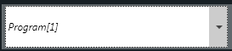
- Select an empty program slot using the selection field in the Program status and control of program operation area.
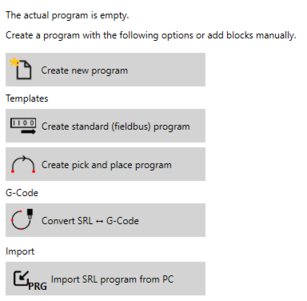
- The following options for creating a new program are displayed:
- Select one of the displayed options:
- Create new program: Create a new program that contains the necessary basic commands and is edited and filled in manually. To do so, manually add motion commands, assignments and control structures to the program by selecting the corresponding value in the "New Block" selection list and then clicking the [Add] button. Repeat this procedure for all commands that your program should still contain and then insert a program end. Refer to the subsequent chapters for further information on the commands.
- Create standard (fieldbus) program: Create a standard program that consists of standard path segments and can be controlled via the fieldbus interface of the software module. See Loading a standard program.
- Create pick and place program: Create a pick-and-place program using a dialog window in which the program can be parameterized. See Creating a pick-and-place program.
- Convert SRL <-> G-code: Open the dialog to create a robot program from a G-code program via the G-code import. See Manual G-code import/export.
- Import SRL program from PC: Import the robot program that is saved on the hard disk of the engineering PC. See Importing an SRL program.
- Click the [Save] button to permanently save the program and the SRL program variables to the memory card.