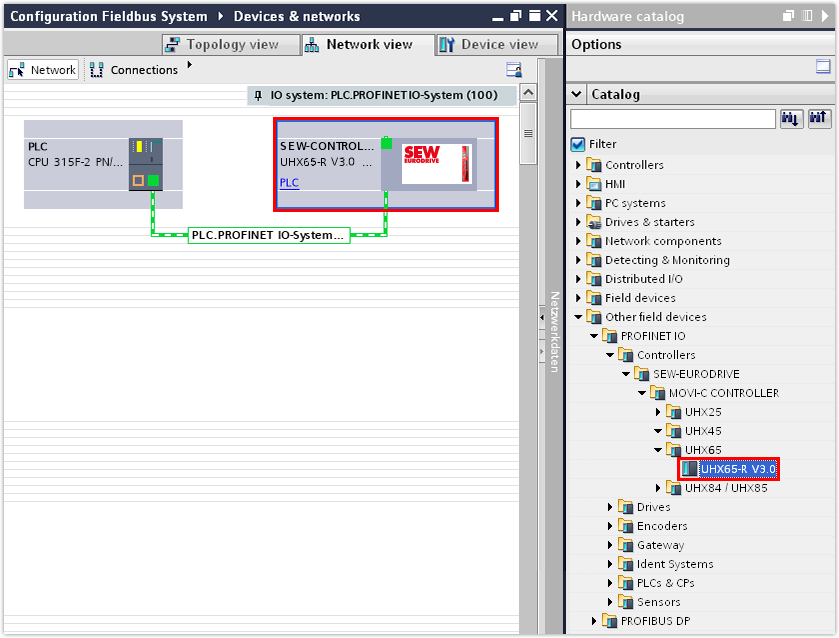
Integrating controllers in the PROFINET network in TIA Portal
The controller must be added to the TIA Portal project, connected to the PLC, and configured.
During configuration, the controller is assigned a logical name, an IP address, and process data with addresses.
If the control is realized via PROFIsafe for an inverter with integrated safety option, a safe communication channel between the PLC and the controller must also be configured.
INFORMATION

This example describes the procedure for a configured and approved MOVISAFE® CSS21A safety option. The configuration of a safety option is described in the manual of the respective safety option.
Proceed as follows:
- You have already downloaded the device description file (GSDML file) of the controller from the SEW‑EURODRIVE website (www.sew-eurodrive.com) and saved it locally on the engineering PC.
- Start the TIA Portal and create a new TIA Portal project.
- Install the device description file in the TIA Portal.
- Add the PLC to the project. Assign a PROFINET device name and enter the IP address parameters of the PLC.
- Insert the IO system at the PROFINET interface of the PLC.
- Open the hardware catalog. Under [Other field devices] > [PROFINET IO] > [Controllers] > [SEW-EURODRIVE] > [MOVI-C CONTROLLER] > [UHX65A ], select the entry for the MOVI‑C® CONTROLLER UHX65A‑R and assign this entry in the network view of the PLC.
- In the inspector window (lower editor section), enter the IP address parameters of the controller in the "Ethernet addresses" section.
- Assign a PROFINET device name to the controller. Make sure that the PROFINET device name is identical to the PROFINET device name in the MOVISUITE® project.
INFORMATION
If several controllers are displayed in the hardware catalog, the version of the controller (version of the device description file) must match the firmware version of the fieldbus option. Check the firmware version of the fieldbus option in MOVISUITE® in the configuration of the controller in the "Firmware 1 - Version" parameter (parameter group [Device properties] > [Device data] > [Subcomponent] parameter group).