Options
Dialog with the following options for software operation:
General
- Hide start screen
- Specify whether to display the start screen when the program starts.
- Open last device list
- Set whether or not the last saved device list file is opened when the software is started.
- Display program in taskbar
- Define whether the program is to be displayed in the taskbar when the main window is minimized. If the button is not visible in the taskbar, the main window can be displayed again via the notification icon (tray icon).
- Folder for application descriptions
- Define the directory in which the lists with the identifications for SEW‑EURODRIVE and customer applications are saved. The entries in these lists are available in the "Customer Appl." and "SEW Appl." drop-down lists during device configuration. See chapter Device configuration.
- Use the respective buttons below to open the lists with "SEW identification" or "Customer identification" for editing.
- Edit application names
- Edit the text file containing the designations of the different applications. The designations in the text file are available in the "Options" dialog window in the "Default Values" tab and when Configuring the Devices.
Scan
- Network adapter
- Selection of the network adapter for scanning the network
- IP addresses
- Specified explicitly when scanning the IP addresses to be checked
- Broadcast Timeout [ms]
- Definition of the timeout time when scanning the network
Scope
Automatic mode
- Wait an additional time for data after the interval has elapsed
- Specifies whether an additional maximum time is waited for valid data after the interval has elapsed. The additional waiting time is at least 30 s and must not be longer than the time interval assigned to the device. The option is only executed if the "Restart recording after data acquisition" option is activated. INFORMATION: This option is effective if a trigger event occurs shortly after the scope recording is started.
- Parameterize inverter before every start of scope recording
- Before every start of a scope recording, a parameterization of the inverter scope function is performed. For this purpose, the parameters from the scope template file that were assigned to the device are transferred to the device. This overwrites the existing configuration of the scope.
- Restart recording after data acquisition
- Restart the scope recording after every data acquisition and wait for the next trigger. If the scope recording is started by another component (e.g. a higher-level controller), this option should be deactivated.
- Data acquisition only with completely filled buffer
- Delete incomplete scope recordings that may occur for system reasons.
Program start
- Start scope function of devices
- When starting the software, start the scope function (scope recording) for all configured devices. No scope templates are transferred in the process.
- Start automatic mode for all devices
- When starting the software, start automatic mode for all configured devices.
Data memory
- Save scope data, save parameters
- Selection of data to be recorded
- Storage location
- Definition of storage location for files containing the recorded data
- Delete oldest files as soon as folder is bigger than; Delete files which are older than
- Options for limiting the required storage space for saving the recorded data locally.
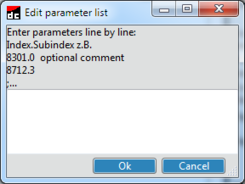
- Create parameter template
- If you click the [Edit…] button, a parameter template can be selected and edited via a displayed dialog window (see screenshot).
- If you click the [New…] button, a new parameter template can be created via a displayed dialog window (see screenshot).
|
|
MultiTemplate
Assigning multiple scope templates to one configured device. This way, different scope templates can be used for successive scope recordings, e.g. for changing the recording channel or the sample rate. Clicking the [Test] button in this tab lists the devices that have several scope templates assigned to them for verification.
To assign several scope templates to one device, a text file (*.txt) with a list of the successive scope templates must be created for the device under C:\ProgramData\SEW\DataCollectorCore\ScopeTemplates. The text files are assigned to the respective device using the file name:
IP target address of the device + R + Routing info of the device . txt e.g. 192.168.10.12R2.1.1.1.txt
In the text file, the complete path of the scope templates to be used must be specified line by line in the desired order, e.g.
C:\ProgramData\SEW\DataCollectorCore\ScopeTemplates\vorlage1.SCT
C:\ProgramData\SEW\DataCollectorCore\ScopeTemplates\vorlage2.SCT
The scope template is loaded after data acquisition and before the next scope recording starts. When the scope template of the last line in the text file has been used, the scope template of the first line is used again.
INFORMATION

If a MultiTemplate is used, no scope template is entered in the device list.
Configuration
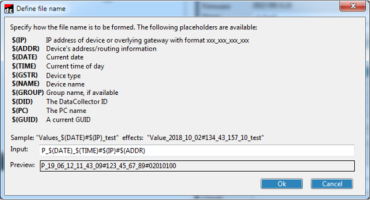
- Parameter destination file name
- Name of the file in which the parameters are saved. The storage location can be set in the "Data memory" tab under Options. The file name is freely selectable and can contain the placeholders shown in the figure. Tip: Use the placeholders to select a name that assigns the file to the device. To ensure that a name is unique across all devices, use the placeholder
$(GUID).
|
|
- Scope destination file name
- Name of the file in which the scope data is saved. The storage location can be set in the Options in the "Data memory" tab. The file name is freely selectable and can contain placeholders (see parameter destination file figure). Tip: Use the placeholders to select a name that assigns the file to the device. To ensure that a name is unique across all devices, use the placeholder
$(GUID).
Default values for device configuration
Values that are transferred to the device properties after a device scan or by pressing the [Default] button in the Configuration Editor.
- Interval [s]
- Interval for automatic data acquisition in seconds
- Auto trigger time [s]
- Auto-trigger time until start of data acquisition in seconds. Trigger time for systems where triggering directly via scope is not possible (e.g. with S1 duty types). The trigger time is relative and results from:
- Interval [s] – Auto trigger time [s]
- Parameter template
- Select a file listing the device parameters that will be recorded once the interval has elapsed.
- Select a parameter template by clicking the [...] button. Parameter templates are stored in the directory
C:\ProgramData\SEW\DataCollectorCore\ParameterTemplates. - Scope template
- Select a file containing the settings for the scope recording. For more information on creating the file, refer to chapter Scope templates.
- If you want to assign several scope templates to one device, observe the notes regarding the "MultiTemplate" tab in chapter Options.
- If the check box "Parameterize inverter before start" is activated in the "Scope" tab of the Options, the content of the scope template is transferred to the inverter before each start.
- Application
- Application to which the device is to be assigned (e.g. for structuring the data to be recorded for evaluation). The list of applications can be edited in the "General" tab via [Edit application name].
