Using Remote Desktop access
Proceed as follows to access the Windows part of the MOVI-C® CONTROLLER via Remote Desktop access from the engineering PC:
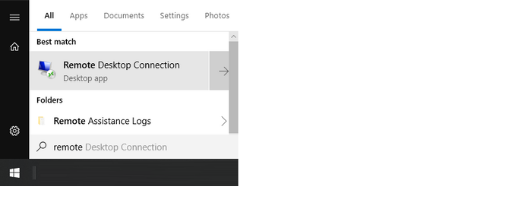
- Start the Remote Desktop Client on the engineering PC (search for "remote" in the Windows Start menu). The software is available in Windows by default.
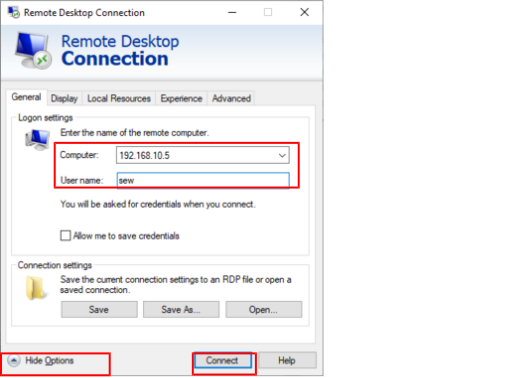
- In the Remote Desktop Client start window, click "Show Options" (bottom left) to view all remote settings.
- In the "General" tab, enter the IP address of the MOVI-C® CONTROLLER (Windows part) in the "Computer" field (here: 192.168.10.5).
- In the "User name" field, enter the user created on the MOVI-C® CONTROLLER during Windows installation (here: sew).
- Click the [Connect] button.
- A dialog box appears prompting you to enter your logon information.
- Enter the password defined for the user during Windows installation on the MOVI-C® CONTROLLER (here: sewsewsew).
- A dialog box with a certificate message is displayed.
- Confirm the certificate message with [Yes].

- The Remote Desktop connection to the MOVI-C® CONTROLLER is active and the desktop of the Windows operating system is displayed on the MOVI-C® CONTROLLER.
