Changing the parameters of a visualization
Proceed as follows:
- In the device view, expand the Visualization Manager.
- Double-click the "WebVisu" node.
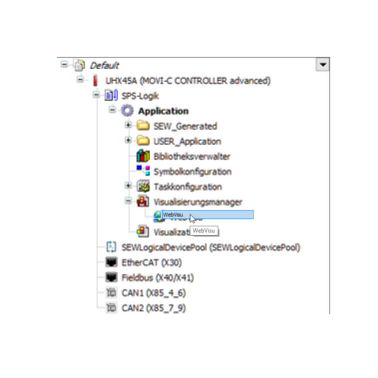
- The parameter window opens.
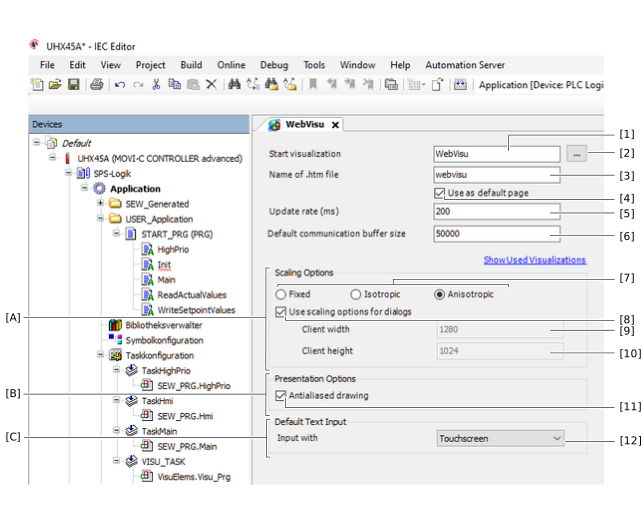
You can change the following parameters of the visualization:

No. | Name | Description |
|---|---|---|
[1] | "Start visualization" edit box | In this edit box, enter the name of the visualization that is to be displayed when called up. Instead, you can use the […] button. |
[2] | [...] button | Click this button to open the input help and select the start visualization there. Instead, you can enter the name of the visualization in the "Start visualization" edit box. |
[3] | "Name of .htm file" edit box | Name of the HTM file. The file name is used for the URL of the visualization, see Using visualization. |
[4] | "Use as default page" check box | Use this check box to specify whether the file entered in the "Name of .htm file" edit box is displayed when IP address and port 8080 of the MOVI‑C® CONTROLLER are called, see Using visualization. |
[5] | "Update rate" edit box | In this edit box, enter the refresh rate of the visualization on the display unit in milliseconds. The default value is "200". The entered value must be greater than or equal to" 50". |
[6] | "Default communication buffer size" edit box | In this edit box, enter the default size of the communication buffer between the display unit and the web server. The entry is made in bytes. |
"Display options" group [A]
No. | Name | Description |
|---|---|---|
[7] | "Fixed", "Isotropic", "Anisotropic" radio buttons | Use these radio buttons to specify whether and how the visualization can be scaled.
|
[8] | "Use scaling options for dialogs" check box | Use this check box to specify whether dialog boxes are scaled by the same factor as the visualization. This check box is only active if one of the radio buttons "Isotropic" or "Anisotropic" under [7] is active. |
[9] | "Client width" edit box | In this edit box, enter the width of the visualization in pixels. This edit box is only active if the "Fixed" radio button under [7] is active. |
[10] | "Client height" edit box | In this edit box, enter the height of the visualization in pixels. This edit box is only active if the "Fixed" radio button under [7] is active. |
"Default text entry" group" [B]
No. | Item | Description |
|---|---|---|
[11] | "Antialiased dawing" check box | Use this check box to enable or disable anti-aliasing for the visualization. Anti-aliasing is an edge smoothing that reduces undesired effects when rendering small objects. |
"Scaling options" group [C]
No. | Item | Description |
|---|---|---|
[12] | "Input with" drop-down list | Use this drop-down list to define how text and numbers are entered:
|
