Taking into operation a project created in "Planning" mode in the system
- A MOVISUITE® project with the required devices and software modules has been created in "Planning" mode as described in chapter Creating an IEC project in "Planning" mode.
- The devices in the system have been cabled according to the device topology in the MOVISUITE® project.
- Your engineering PC is connected with the MOVI‑C® CONTROLLER via Ethernet interface. Observe chapter Configuring the communication interface.
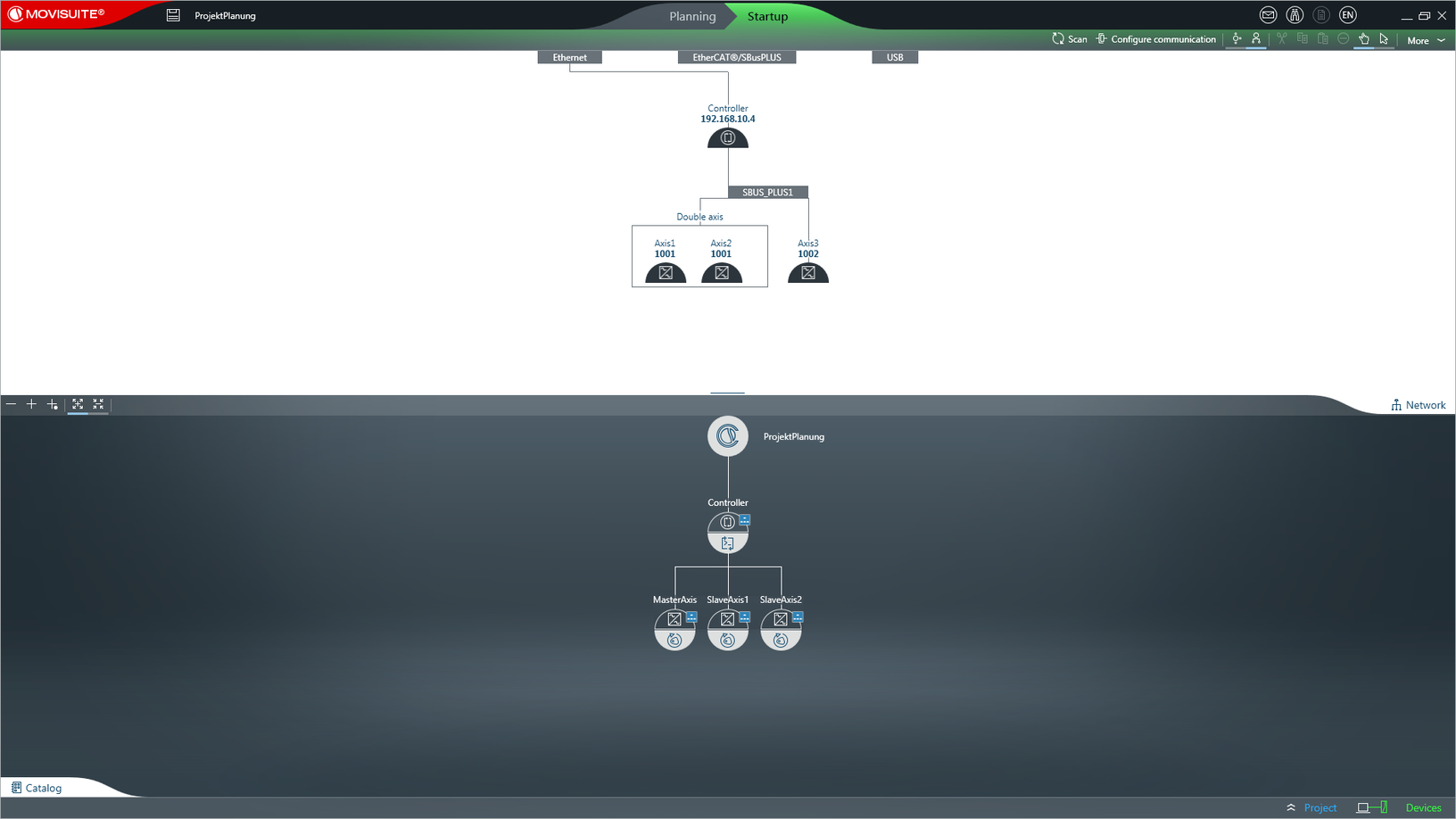
- In MOVISUITE®, switch to "Startup" mode.
- In the toolbar, click [Scan].
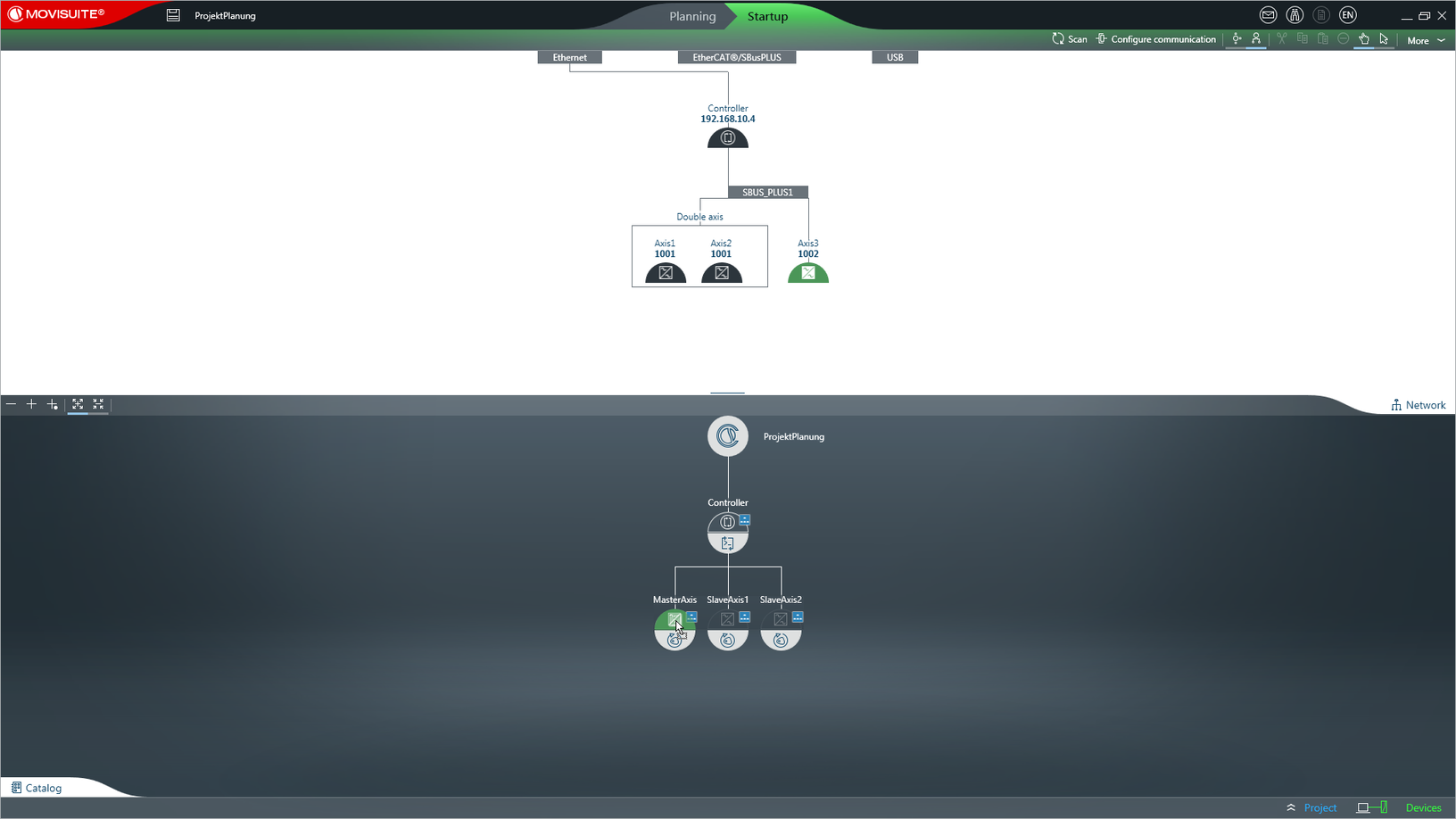
- Assign the devices displayed in the network view to the devices in the function view using drag and drop.
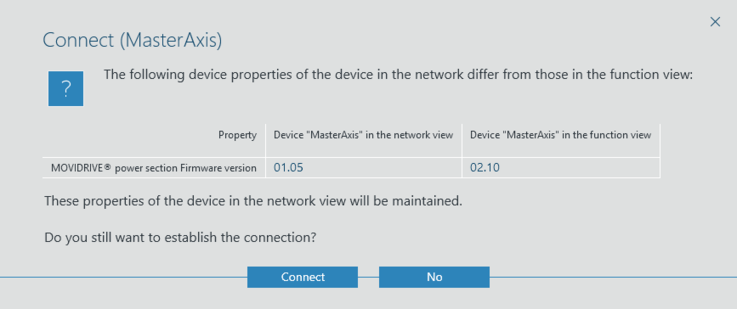
- Acknowledge the message by clicking "Connect".
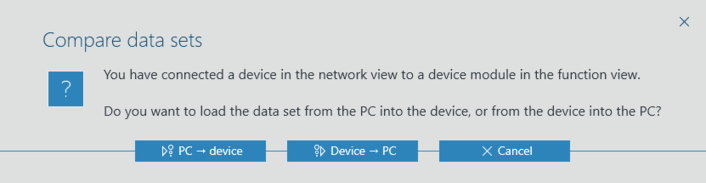
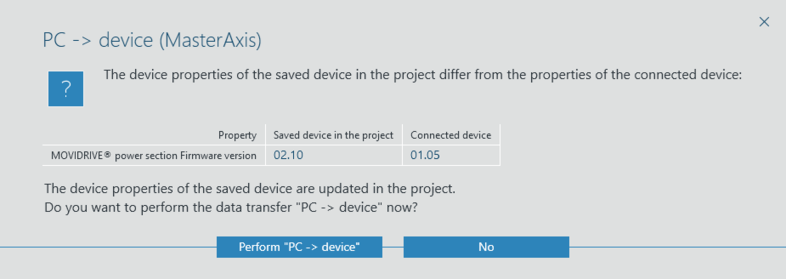
- Click "PC → device".
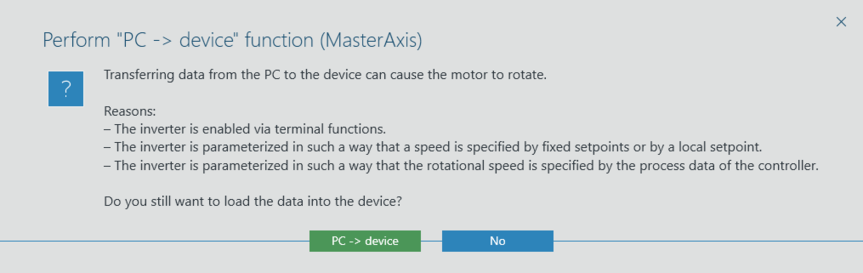
- Click "Perform PC → device".
- Click "Perform PC → device".
- Update the IEC project. See chapter Generating an IEC project.
- Compile (build) the IEC project. See chapter Compiling (building) the IEC project.
- Download the IEC project onto the MOVI‑C® CONTROLLER. See chapter Login and download.
- Start the IEC project. See chapter Starting the IEC program.
- Create a boot application. See chapter Creating a boot application.