Establishing a TCP connection with an inverter
IoT App Connect enables a direct connection between the web app and inverters via PROFINET and EtherNet/IP.
Proceed as follows to establish a connection:
- You have switched on the inverter.
- The inverter is in the same subnet as your computer.
- You have started IoT App Connect.
- Open the web app and log in.
- In device management, click the [Add product] button.
- A menu with different variants that you can add opens.
- Select the Ethernet icon:

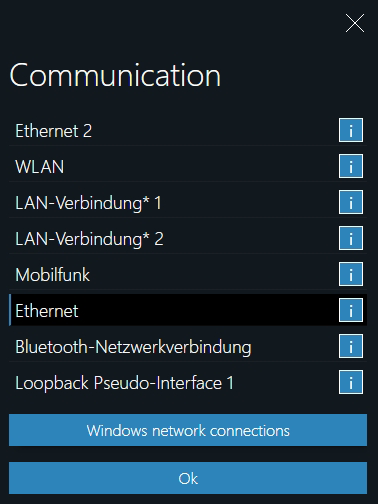
- The "Communication" dialog window opens.
- Select the required network interface. If you move over the information icon, the IP address of the respective network interface is displayed. When you click "Windows network connection", a Windows menu opens in which all information about the network interfaces is displayed.
- Click the [OK] button to confirm your choice.
- Devices are searched for.
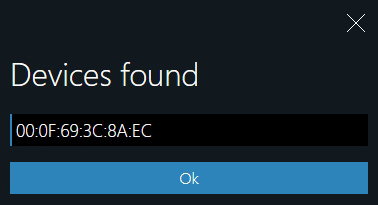
- The "Devices found" dialog window opens and shows the IP address of the found devices.
- Click the [OK] button to confirm the device.
- Data is loaded.

- The inverter is connected to the web app.
- The web app can communicate with the inverter.
