Configuring the system offline
Create a new project by selecting one of the two methods.
- Using the [Create new project] button
- Using the [Import project from Backup File] button
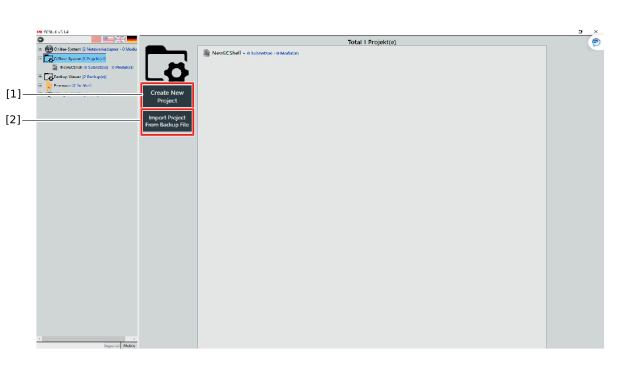

[1] | "Create New Project" button |
[2] | "Import project from backup file" button |
Procedure
- Enter a name for the project and click the [Create New Project] button.
- The newly created project appears in the main window and in the network view.
- Double-click to open the newly created project.
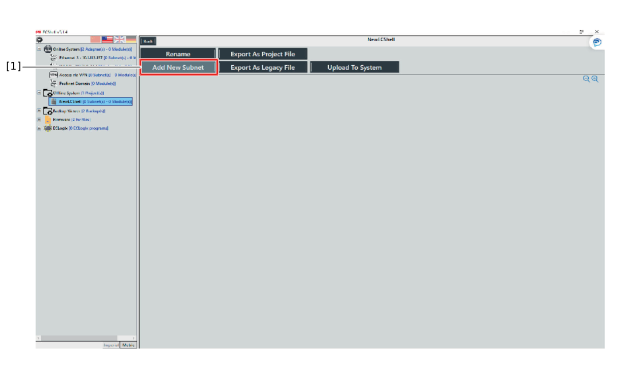
[1] | "Add New Subnet" button |
- Create a new ECDriveS® network. To do so, click the [Add New Subnet] button in the main menu.
- An input window appears.
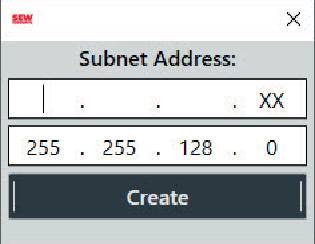
- Enter the address of the subnet and the subnet mask.
Example: If the ECDriveS® network is in the address range 192.168.10.20. – 192.168.10.123, the subnet is 192.168.10.xx.
For further information, refer to chapter Subnet mask. - The newly created subnet appears in the main window of the project and in the network view.
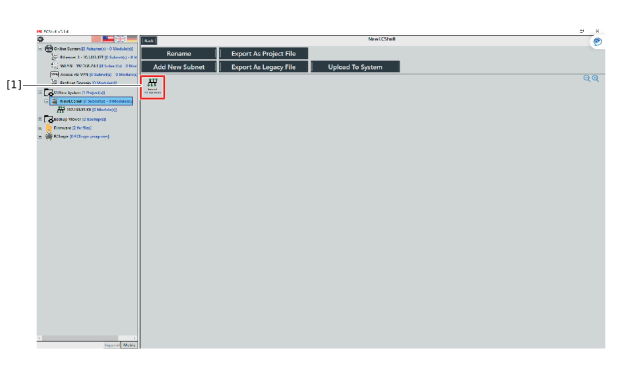
[1] | Newly created subnet |
- Double click the newly created network to open it.
- Add new fieldbus modules to the subnet by clicking the [Add Module] button.
- An input window appears.
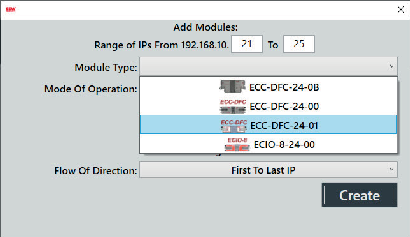
- The following settings can be made:
- IP address of the module.
For several modules, enter the start and end addresses. If only one module of the same type is to be inserted, both fields are identical. - Module type
Drop-down list - Mode of operation: PLC mode, ZPA mode
- Direction of flow
Product direction of flow on the conveyor. - Confirm the settings by clicking the [Create] button.
