Performing a device scan
The device detection function that is performed during the network scan assumes that the network interface used on the computer is configured accordingly. To configure the network interface for the network scan, proceed as follows:
INFORMATION

If you use the EtherCAT® adapter for network communication, you cannot use the software and MOVISUITE® at the same time. Also make sure that the EtherCAT® adapter is installed before starting the device scan.
Before starting the device scan, make sure that the EtherCAT® adapter is active. Otherwise, devices could be created twice.
- A communication link is established between the computer and the SEW-EURODRIVE device network.
- Open the "Devices" tab.
- Click the [Device scan] button.
- The "Device scan" configuration menu opens.
- The device scan function can be configured via the following setting fields:
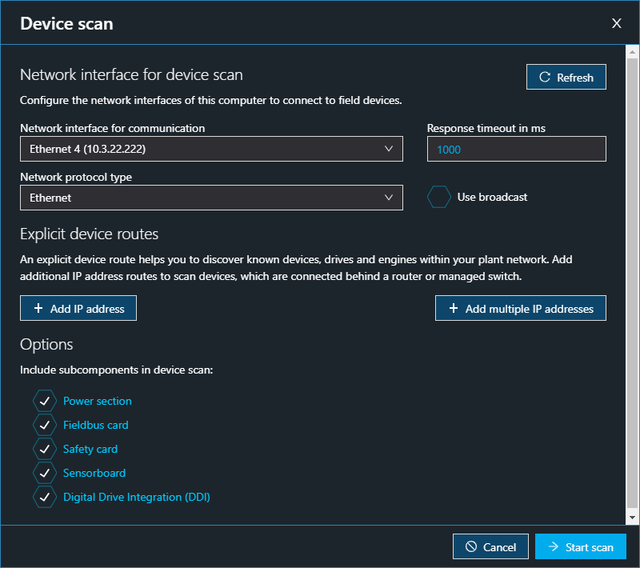

Setting field | Description |
|---|---|
Network interface for device scan | |
[Refresh] button | Refresh the detected network adapters. |
Network adapters for communication | Select the network adapter of your computer to establish the communication link. |
Response timeout in ms | Set the timeout time of the network adapter when trying to establish the communication connection. The set value applies to all communications with the field devices (device scan, parameter, scope), but not to the endpoints. |
Network protocol type | Select the subordinate network layer:
|
Use broadcast | Activate the broadcast function. Activating the broadcast function will result in an increased network load, which can cause undesirable effects. INFORMATION: The broadcast function will not find the devices in routed networks. An IP address range must be specified here. |
Explicit device routes | |
Buttons [Add IP address] and [Add multiple IP addresses] | Manually add more IP addresses or IP address ranges (use a hyphen when specifying IP address ranges, for example Explicit device routes help you to find known devices, drives and machines in your plant network. |
Options | |
Include subcomponents in device scan | Use the displayed choice boxes to select which subcomponent sources are detected during the device scan. |
- Click [Start scan].
