Configuring the communication interface
- There is an Ethernet connection between MOVI‑C® CONTROLLER and engineering PC.
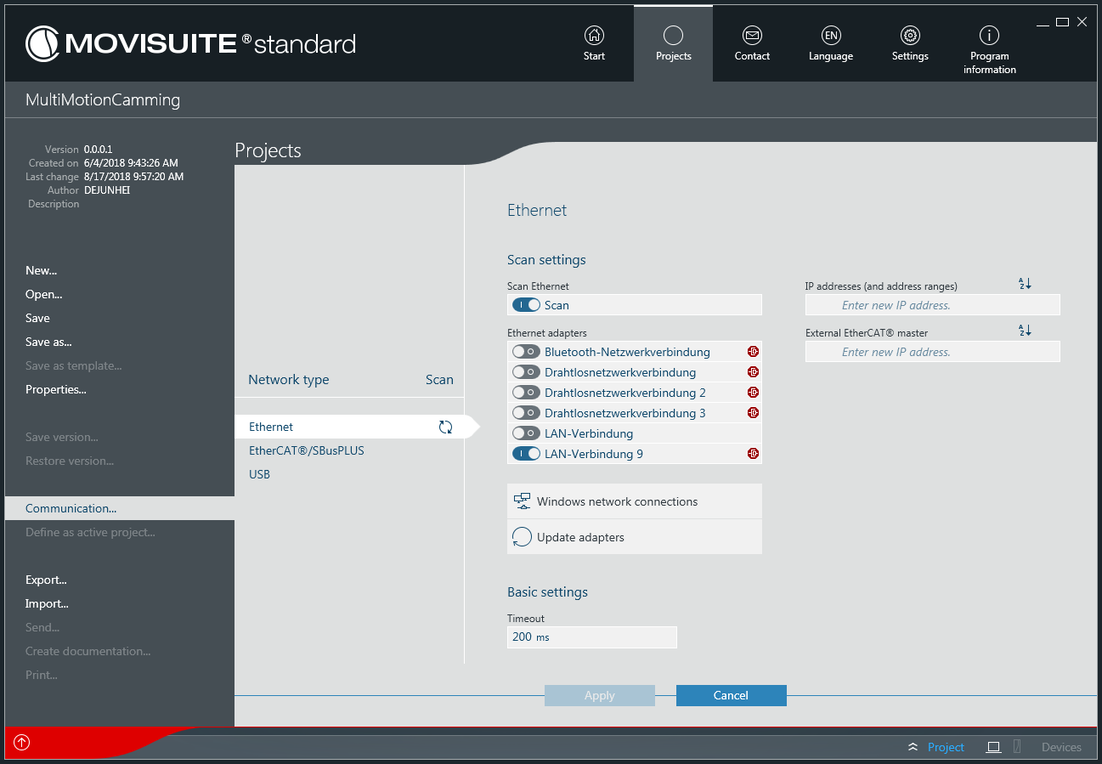
- The "Communication" menu of the "Projects" tab of the main menu is open.
- Under "Network type", select [Ethernet] as the communication interface.
- Advanced setting options for the "Ethernet" network type are displayed. For more information, refer to the MOVISUITE® manual.
- Under "Scan settings", activate "Scan Ethernet".
- Under "Scan settings" in the "Ethernet adapters" section, activate the communication adapter you want to use for scanning the network.
- Under "Scan settings", click the [Windows network connections] button.
- Doing so opens a Windows window with available network connections.
- In the properties of the network connection in use, set the IP address of the adapter used by your engineering PC under "Internet protocol version 4 (TCP/IPv4)".
- To update the list of available adapters, click in MOVISUITE® on the [Update adapters] button under "Scan settings".
- Optionally enter the IP addresses of the devices to be scanned in the "IP addresses (and address ranges)" edit box in the "Scan settings" section. Doing so is necessary, for example, when the devices are located in other subnets.
- Optionally enter the IP addresses of the external EtherCAT® master in the "External EtherCAT® master" edit box in the "Scan settings" section.
- Close the process by clicking [Apply and start scan].

INFORMATION

If the connection between MOVI‑C® CONTROLLER and engineering PC is correct, the command ping <IP-Adresse> in the Windows command prompt returns, for example, ping 192.168.10.4 when standard IP address response telegrams are used.
- The menu closes and the network scan starts automatically.
