Updating variable information
If variables or structures are renamed, restructured, added or deleted in the IEC project, the change of the variable information is only applied and only becomes active after the symbol configuration has been created again in the IEC project. Changes to the variable information and thus the symbol configuration of the IEC project are not automatically adopted in the visualization project. The visualization project always contains the variable information of the last compiled IEC project with the symbol file in question that was created and exported.
INFORMATION

Variables configured for export to the symbol file which are not valid in the current application (e.g. due to an incorrect variable declaration) are marked in red in the symbol configuration in the IEC Editor.
Proceed as follows to update variable information in the visualization project:
- Compile (build) the modified IEC project. See chapter Compiling (building) the IEC project.
- Transfer the modified IEC project onto the MOVI‑C® CONTROLLER. See chapter Login and download.
- In the function view of MOVISUITE®, click the software module section of the MOVI-C® CONTROLLER.
- The "IEC project" menu opens.
- Click the [Export Symbol Configuration] button in the "Symbol Configuration" area and select the storage path for the symbol file.
- If the existing symbol file is overwritten, no further adaptation of the data source configuration is necessary and you can continue directly with the next step.
- If the symbol file has a different file name or is stored under a different storage path, this change must be adapted in the configured data source. For this purpose, the configuration of the data source must be opened (double-click the data source in the device tree) and the correct path must be entered in the "Select symbol file" field in the "Communication" tab. See also For MOVI-C® CONTROLLER UHX65A.
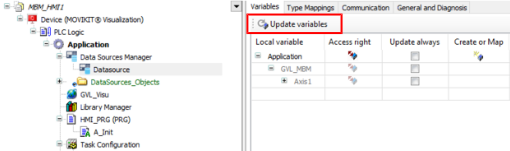
- Open the "Variables" tab in the menu of the configured data source (double-click the data source object in the device tree).
- To read in the variable list again, click the [Update variables] button in the "Variables" tab.
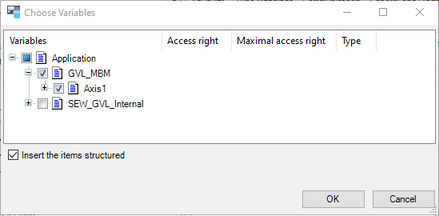
- The "Choose variables" window is displayed.
- Select the variables that you wish to make available in the visualization project from the updated variable list and confirm your selection with [OK].
- The changed variable information is available in the visualization project.
- In the "Always update" column in the "Variables" tab, place a tick in the check box for the desired variables.
INFORMATION
If the "From communication settings" option is configured for the data source used for the "Variable information", the next two steps can be skipped and it is possible to proceed with step 5.