Creating a visualization
INFORMATION

You have to add the visualization manually to the device tree. It is not integrated into code generation. This is why already created visualizations will be deleted when creating a new IEC project in MOVISUITE®.
Proceed as follows:
- You have started the IEC Editor.
- You have activated the device view by choosing [View] > [Devices] from the menu.
- You have logged out of the IEC Editor using the menu command [Online] > [Logout].
- In the device view, right-click the "Application" entry.
- Select [Add object] from the context menu.
- Select [Visualization…] from the context menu.
- The "Add visualization" window opens.
- Activate the check box in the "Active" column.
- Click the [Add] button.
- The visualization [2] is added. Additionally, the Visualization Manager [1] and an empty visualization page [3] are inserted.
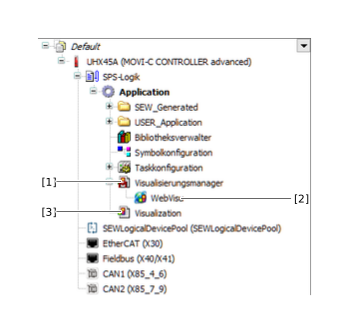

Visualization Manager
The Visualization Manager manages the configuration settings for all display variants of the visualization. For information on the configuration settings, refer to the IEC Editor help.
